Net staff and the NCS rotation
There are two separate lists here, and they answer two different questions. Authorized Net Staff answers “who is allowed to run a net from this schedule at all.” The NCS rotation answers “whose turn is it this week”, and it’s entirely optional.
Authorized Net Staff
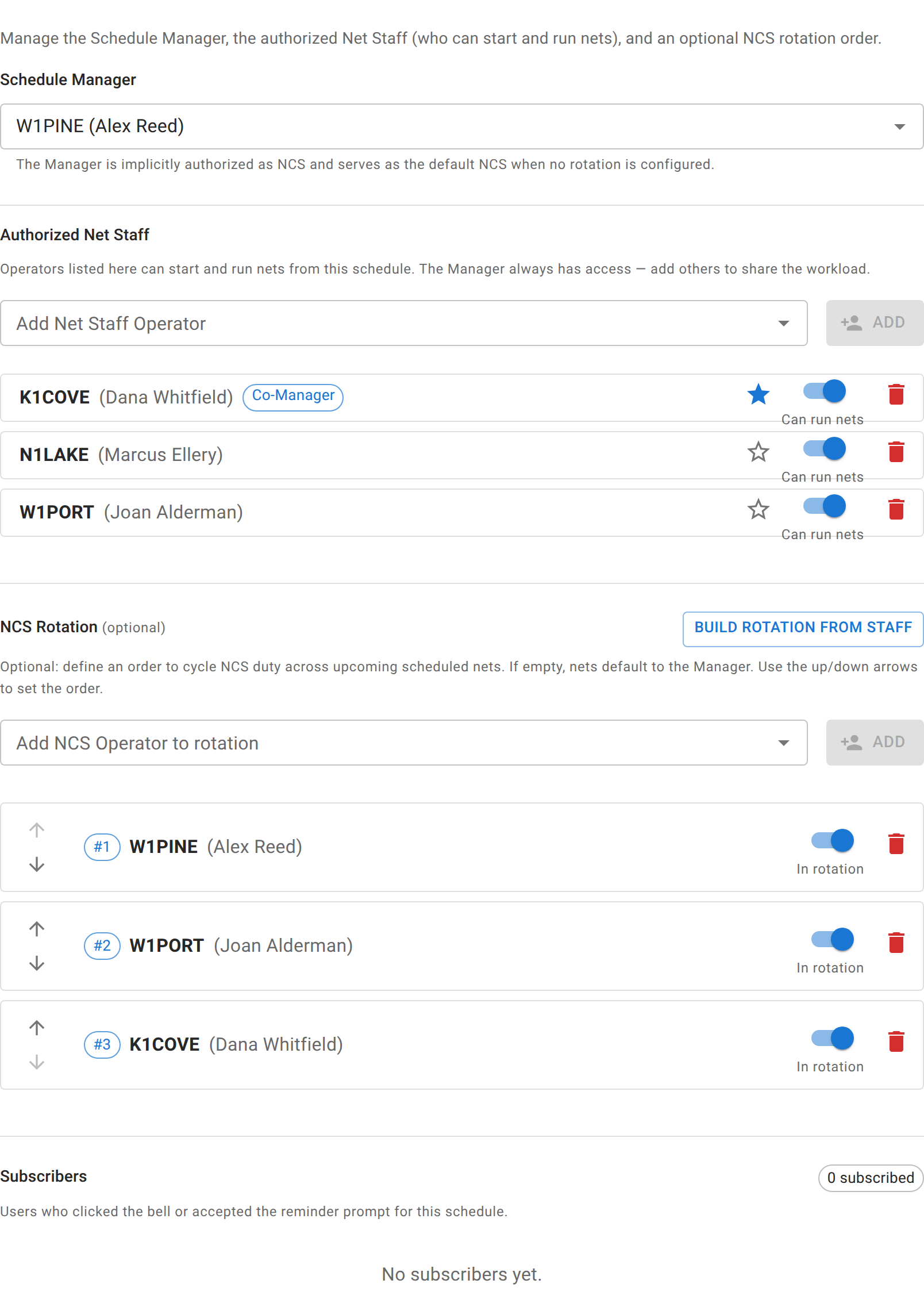
From a schedule’s Net Staff tab (or the Staff button on its card), add any operator to the Authorized Net Staff list and they can start and run nets from that schedule from that point on, with no rotation slot required. The Schedule Manager, whoever created the schedule or was later handed it, always has this access implicitly.
Each staff row has its own switch to disable someone temporarily without removing them, and a star to promote them to co-manager. Co-manager is a strictly higher tier than plain staff: it’s for schedule-ownership actions (transferring ownership, merging schedules, archiving or deleting a net from this schedule), not for who can run a net night to night. Plain active staff can already do that.
Since 2026-09-18, any active staff member can also claim NCS or Logger on a net just by checking themselves in as one, the same as a rotation member could before; co-manager status isn’t required for that. Pick Check In as NCS or Check In as Logger on the check-in banner or form when it’s offered; see Checking in for what that looks like. Only a genuine self-check-in grants a role this way. If Net Control or the Logger enters someone else’s check-in by voice, it never grants NCS or Logger on their behalf, even if that person is staff.
The NCS rotation (optional)
The rotation is a separate, ordered list. Reorder it with the up/down arrows, or build it in one step from the Build rotation from staff button, which adds every active staff member (and the manager) who isn’t already in it. Being in the rotation carries the same starting and self-grant access as being on Authorized Net Staff, even for someone added only to the rotation and never to the staff list. On top of that, it’s what decides who gets pre-assigned NCS automatically, ahead of time, on each occurrence a recurring schedule creates. If the rotation is empty, nets default to the manager. Deactivate a rotation member the same way as a staff row, to skip them without losing their place in line.
A single date can be overridden from the schedule’s Schedule tab in the Net Staff dialog: swap a specific night to someone else, or mark it as no coverage, without touching the rotation’s permanent order.
Why an auto-created net can start with nobody assigned
If a schedule has no rotation configured, its automatically created nets, and their auto-opened lobbies if that’s turned on, start with no one assigned as NCS. This is intentional, not a bug: clubs routinely don’t know who’s available until the night of, and the fix isn’t to guess a default assignment, it’s for whoever shows up to claim it. Any active staff member does that just by checking themselves in as NCS, exactly as described above.
If a net somehow ends up active with nobody holding NCS at all (the assigned rotation member never showed, for instance), a Claim NCS button appears in the net’s toolbar for anyone who can otherwise manage the net, so it’s never permanently stuck.
Assigning roles by hand
Net Control, Logger, and Relay can also be assigned directly from a net’s Roles button (“Manage Net Control Staff”), which lists current assignments and lets you add or remove them. This works regardless of net status, so a role assigned to the wrong person on a closed net can still be corrected after the fact. It’s a separate action from the self-grant above: this is for staff assigning someone else (or logging a Relay station), not for claiming a role yourself.
A net can legitimately have more than one active NCS at once: a multi-desk exercise with several people each running their own frequency, for example. The check-in list marks every NCS after the first as 2nd NCS in its legend; it’s not a separate assignable role, just how the list marks an additional active one. See Station statuses for the full legend.
Related
Assigning a role to yourself while checking in, and stepping back down to a standard participant afterward, are covered from the operator’s side in Checking in and Status, rechecks, and checking out. The complete list of roles and what each one can do is Roles and permissions.