Sites
When an ARES team deploys to shelters, or a race puts operators at aid stations, net control needs to know who is at each place, not just who is on the air. Give the net a list of sites and the check-in form gets a Site box ahead of Location. Net control picks the site, and the Sites board shows every station grouped by where it is, with any site nobody has reached standing out.
Sites work on any net. A coverage drill such as the ARES Simulated Emergency Test builds on the same list to test which places can reach which; that’s Coverage drills by site.
Before you start
You need to be able to edit the net: its manager, its schedule’s manager or a co-manager, or an admin. Sites belong to one net, so for an event that runs from a recurring schedule, add them to the net that schedule creates, from that net’s Edit.
Set up the sites
- Open the net’s settings (Edit on the net, or the form when creating it) and go to Basic Info.
- Under ARES & EmComm Features, find Sites and click Add site.
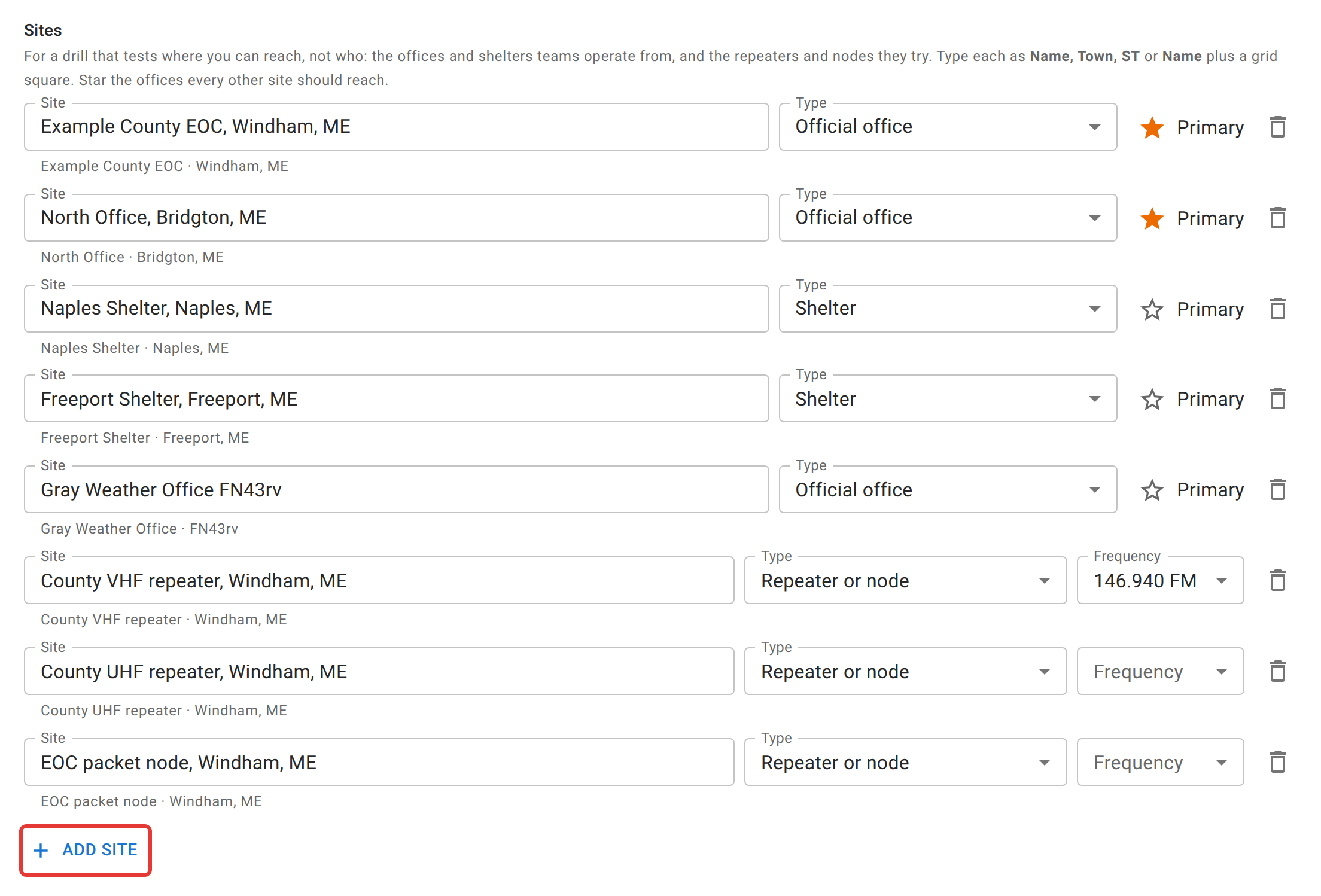
- Type the site as one line: Name, Town, ST, such as
Naples Shelter, Naples, ME, or a name followed by a grid square, such asGray Weather Office FN43rv. The line underneath shows how it was split. If it says no place was found, add a comma before the town. - Pick the site’s Type: Official office for an emergency management office or EOC, Shelter, Point of distribution (POD), Staging area, Hospital, or Other for anywhere else, such as an aid station or a checkpoint.
- Leave Supported ticked on each site your teams will staff. A site you add by hand starts ticked.
- Click Save.
Open a site with the arrow at the end of its row to add its address, latitude and longitude, and notes such as a point of contact or how to get in. Latitude and longitude, when you have them, place the site on the map exactly.
With coverage logging turned on, the list also takes repeaters and nodes, and a Primary star for the offices every other site should reach. Both are explained in Coverage drills by site.
Removing a site takes the stations placed at it off that site; their check-ins are kept.
Import an emergency management agency’s site list
An emergency management agency (EMA) keeps its shelters and points of distribution in a spreadsheet, and each agency lays its list out differently. Instead of typing hundreds of sites, import the list and tell ECTLogger which column is which.
- Save the net first. Importing needs a saved net.
- Under Sites, click Import and choose the file: Excel (.xlsx) or CSV, up to 5 MB.
- If the workbook has more than one sheet, pick the Sheet. If the list has a title above its headings, check that Headings are on names the row with the column headings.
- Under Columns, check what each field was matched to, and change any that are wrong. Only Name is required. The town and state become the site’s place; if the list has no state column, type it in State for every site.
- Choose the Type for every site, such as Point of distribution (POD). Import a shelter list and a POD list one at a time so each gets its own type.
- Leave Our teams staff every site on this list unticked for an agency’s full list. You’ll tick Supported on the sites you staff afterward.
- Check the preview and click Import. The sites are added to the list on the form; click Save to keep them.
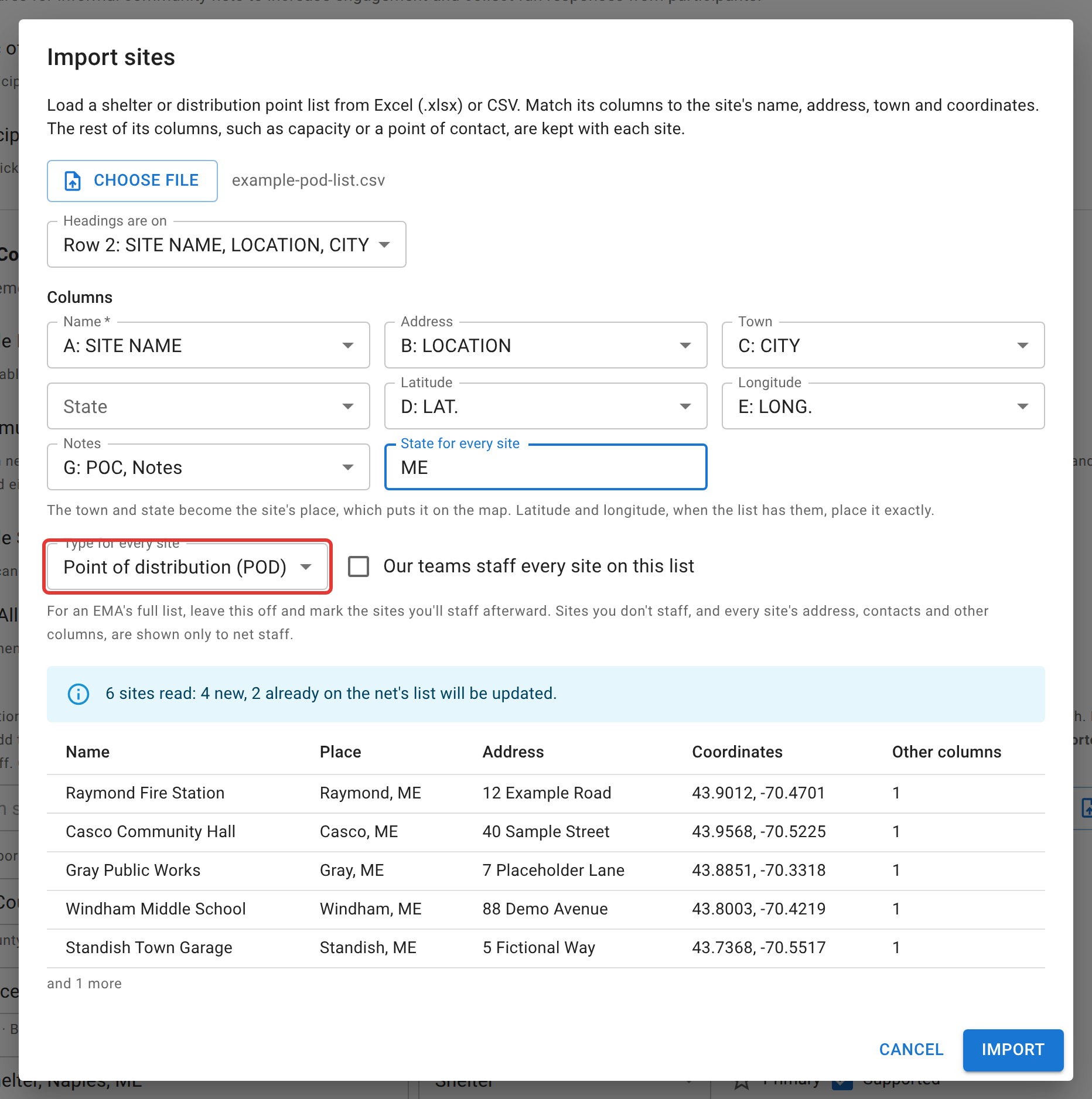
Every other column, such as capacity, generator, or plan status, is kept with its site and shown when you open the site. Importing a newer copy of the same list updates the sites already there, matched by name and town, and keeps their star, their Supported tick, and the stations checked in at them. A net holds up to 500 sites. Use the search box and the Type filter to find one.
Who sees the sites
An agency’s list of possible shelters is not public: a shelter on a published list reads as an open shelter, and in a real event some won’t be. So:
- Net staff see every site, with its address, notes, and the other columns. That’s the net’s manager, its schedule’s manager and staff, an admin, and anyone acting as NCS, Logger, or Relay.
- Everyone else sees only the sites in use: ticked Supported, starred as primary, a repeater or node, or with a station checked in there. They see the site’s name and place, never its address, notes, or other columns.
The Site box, the Sites board, the report, and the closing email only ever show sites in use. If a team turns up at a site you didn’t tick, net control can check them in there, which puts it in use.
Afterward
- The net report has a Sites section listing who was at each site, at home, or deployed over the whole net. A station that moved shows at each place. See Reports and exports.
- The closing email has the same Sites section.
Next
Stations at sites is net control’s side: checking a station in at a site, what happens when it moves, and the Sites board. Coverage drills by site adds the reach testing on top.