Importing check-ins
If a net ran off-app, on paper or in a spreadsheet or in another logging program, you don’t have to leave that history out of ECTLogger. The Import button, in the toolbar of any net you can manage, reads a CSV file and creates a check-in for every row.
Backfilling a net that never ran here
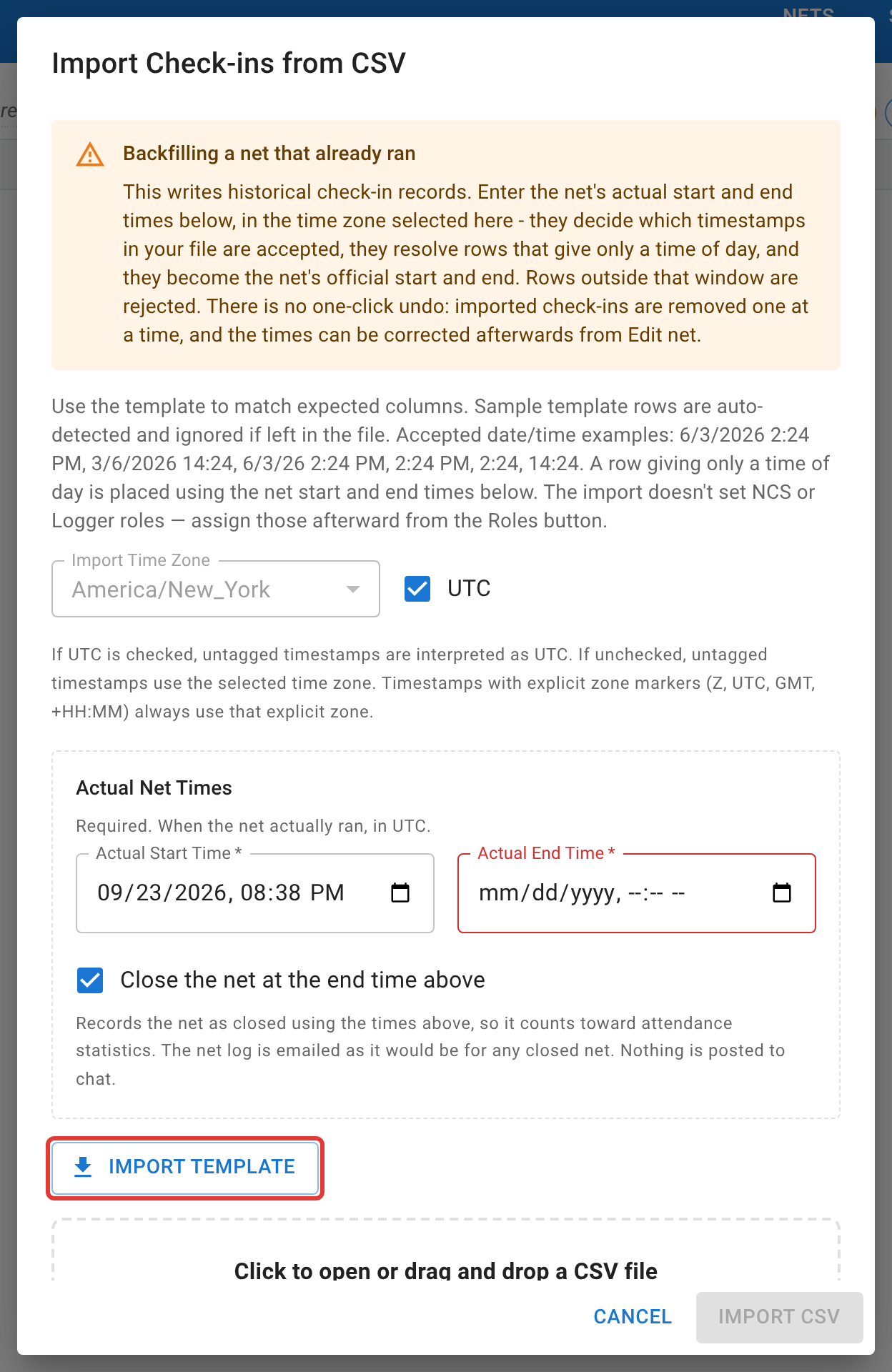
Importing into a draft or scheduled net is treated as a backfill: that net never actually ran inside ECTLogger, so it has no recorded start or end time of its own. The dialog requires you to enter the net’s real Actual Start Time and Actual End Time before it will accept a file. Those times both bound which rows in your CSV get accepted and become the net’s official recorded times. Check Close the net at the end time above and the net is closed immediately after the import, using those times, with the usual closing log emailed out, so a paper net’s history counts toward attendance statistics exactly as if it had run live. If every row in the file fails to import, the net is left scheduled rather than closed with nobody in it, so you can fix the file and try again.
Importing into a net that’s already lobby, active, closed, or archived works the same way, except the times are optional. Leave them blank to import without changing anything the net already recorded, or fill them in only if you need to correct them.
The file format
Download the template rather than building the CSV from scratch; it has the exact column headers the importer expects, plus two sample rows showing the format (delete them before importing; they’re detected and skipped automatically if you don’t). Only Check-in Time and Callsign are required; every other column (Name, Location, Available Frequencies, Spotter #, Weather Observation, Power Src, Power, Feedback, Notes, Relayed By, Status, and Topic/Poll responses if the net collects them) is optional.
Check-in Time accepts a full date and time (6/3/2026 2:24 PM, 3/6/2026 14:24, 6/3/26 2:24 PM) or just a time of day (2:24 PM, 14:24). A bare time is placed on whichever day fits inside the net’s start/end window, so give a full date if the window spans more than 24 hours to avoid ambiguity. Choose an Import Time Zone for timestamps with no zone marker of their own; anything already tagged with Z, UTC, GMT, or an explicit offset uses that regardless of what you select. A Status column matching one of the station statuses is honored; leave it blank and the row checks in normally.
The import doesn’t assign NCS or Logger to anyone. Do that afterward from the net’s Roles button, as described in Net staff and the NCS rotation.
After importing
The dialog reports how many rows were imported, how many were skipped, and lists any row errors so you can fix and re-import just the ones that failed. There’s no one-click undo for a completed import (a wrong row is removed the same way any other check-in is deleted, one at a time), but the net’s recorded start and end times can still be corrected afterward from Edit Net.