Creating a net
A net is one session: one night, one log, one set of check-ins. If you want the same net to come back every week, don’t fill this form out from scratch each time. Build it once as a schedule instead, and let ECTLogger create the net for you.
Starting a net
Starting a net and editing one go through two different forms. The dashboard’s + button (tooltip Create new net) walks you through the same tabs as setting up a schedule, pre-set to a one-time occurrence; save it and ECTLogger creates the net and takes you straight there. The Create button on an existing schedule’s card skips a form entirely, creating the next occurrence on the spot and opening its net view. Either way, this page covers what you land on afterward: Edit Net, reachable from any net’s own toolbar once it exists.
A brand-new account may not be able to do either one right away. See a brand-new account may have to wait for the age, participation, and daily-limit rules your instance may enforce.
The six tabs

Only Net Name and at least one frequency are required. Everything else can be filled in later from Edit Net, reachable from the net’s own toolbar once it exists.
Basic info
Name, description, an optional info URL and audio stream URL, and a scheduled start time. Setting a start time turns on the countdown timer participants see before the net goes live, and it’s also what auto-open lobby counts backward from.
Below that are three groups of toggles, all off by default unless a schedule already turned them on for you:
- General: prioritize mobile stations in the check-in list, keep chat open for a few minutes after closing, allow or block self check-in (turn this off if you want every check-in to come in over the air and be logged by staff instead), and the auto-lobby and auto-close settings.
- Community net features: Topic of the Week asks participants a free-text question at check-in; Participant Poll asks a short question with autocompleted answers so the results stay countable. Turning either on adds a locked, always-enabled row for it on the Check-In Fields tab, so you can’t accidentally leave a poll’s answers uncollected.
- ARES & EmComm features: the ICS-309 Communications Log format for the closing email, station-to-station coverage logging (“can hear” reports), and Authenticated Net, which lets Net Control or the Logger compare a checked-in station’s live authenticator code against the one ECTLogger computes for their account. A station with no two-factor authentication set up simply shows as unverified rather than blocking the check-in. Assisted Traffic Handling, which sets the form types this net accepts, lives here too; see the traffic pages in Net control for what staff do with it.
Once the net exists, a Net Logo uploader appears here too. It’s shown on net cards and beside the net name on the check-in page, and accepts PNG, JPEG, or WebP. Whichever format you upload is what gets stored, so a transparent PNG logo stays transparent.
Net staff
Add operators here who should be assigned NCS the moment the net is created. This is a shortcut for a single net; for a schedule that runs every week, staffing lives on the schedule instead; see Net staff and the NCS rotation.
Communication plan
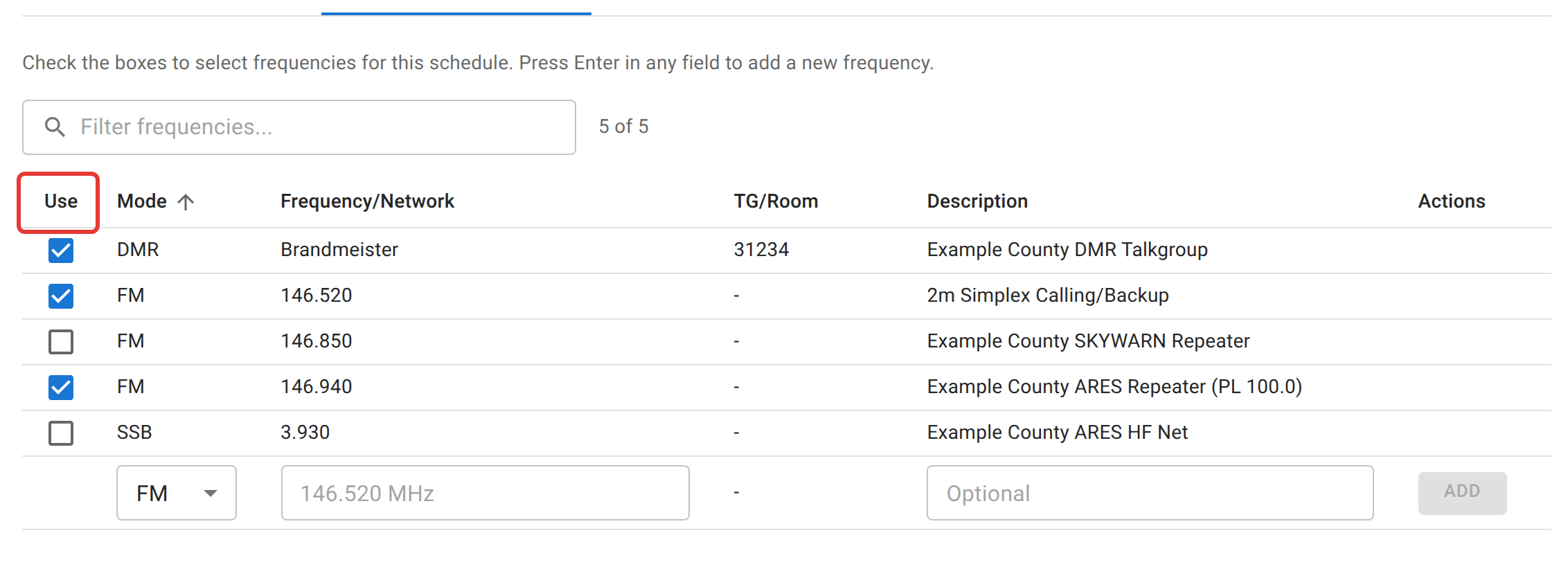
Every net needs at least one frequency or digital talkgroup. Check the boxes in the Use column to attach existing ones, or fill in the blank row at the bottom to add a new repeater, simplex frequency, DMR/D-STAR/YSF/P25 network, or GMRS channel and it’s added to the shared list for next time. Pressing Enter in any field of that row saves it, same as clicking Add. The list is shared by every net on the site, so you can’t change or remove an entry from here; if one is wrong, ask an admin to fix it in Shared frequencies.
Net script and announcements
The Net Script tab is the formatted text Net Control reads from during the net, and Announcements here is this one night’s own notes, not the schedule’s standing weekly announcements, which are a separate, similarly-named thing. Both are covered in full in Scripts, notes, and announcements, including that naming collision.
Check-in fields
Callsign is the only field every net always requires. Everything else (Name, Location, Spotter #, Weather Observation, Power Src, Power, Feedback, Notes, and any custom fields your instance’s administrator has defined) is switched on or off and marked required or optional independently, per net. See Check-in fields for the complete list. If Topic of the Week or Participant Poll is on, its response field appears here too, locked on so it can’t be switched off by mistake.
Saving
Create Net (or Save for this Net when editing) saves changes to this occurrence only. If the net was created from a schedule, editing it also offers Save to Schedule, which pushes everything on this tab set (name, description, script, announcements, frequencies, check-in fields, and the ICS-309/topic/poll toggles) back to the schedule so every future net inherits it. Net staff and the rotation are managed separately and are never touched by Save to Schedule.
Editing a closed or archived net still works, so a typo or a wrong setting can still be fixed, but nothing about it re-sends the closing email or re-triggers a notification. It updates the record only.
Related
Deciding who can run this net and the order Net Control rotates through is Net staff and the NCS rotation. Custom check-in field definitions themselves (as opposed to which ones this net turns on) are set instance-wide by an administrator; see Administrators.