Drill plans
A section exercise such as the ARES Simulated Emergency Test arrives as a plan: a scenario, objectives for each county, and a timed schedule of events. Each county then adds its own objectives and the messages its sites will send. A drill plan holds that on the net that runs the drill, so the same plan is what net control works from, what each site carries, and what the hot wash rates.
A plan has four parts:
- Overview - the exercise name, date and time, location, purpose, scenario, and the exercise announcement.
- Objectives - numbered within headings, such as one heading for the section’s objectives and one for your county’s. Each gets a result after the drill.
- Schedule of events - rows with a time, initiator, receiver, type, method, the event, and the expected actions: the same columns section plans use.
- Prepared messages - an ICS-213 on a schedule row, sent by that row’s site.
One net holds one drill’s plan. For a drill with sites, set those up first: see Coverage drills by site.
Who can do what
- Writing and rating the plan takes the same permission as editing the net: its manager, the schedule’s manager, an active NCS, or an admin.
- Reading the plan and marking messages sent is open to net control staff: an active NCS, Logger, or Relay, and the schedule’s staff.
- Stations taking part don’t see the plan in the app. They get their site’s printed packet.
Write the plan
- Open the net’s settings with Edit net, and on Basic Info, under Drill plan, click Open drill plan. The plan opens in its own tab.
- Click Create drill plan. The exercise name starts as the net’s name; change it to the exercise’s, since it’s also the incident name on every ICS-213 for this drill.
- Fill in the overview. The exercise announcement starts with the standard wording; keep it or use your section’s.
- Under Objectives, click Add objective for each one. Type a Heading to group it; a new objective takes the heading of the one above it. Use the arrows to reorder.
- Under Schedule of events, click Add row for each event. Give a row a Site to put it in that site’s packet, or leave it on Every site.
- For a message a site will send, turn on Prepared ICS-213 and fill in the addressee, sender, subject, message, priority, and whether a reply is requested.
- Click Save.
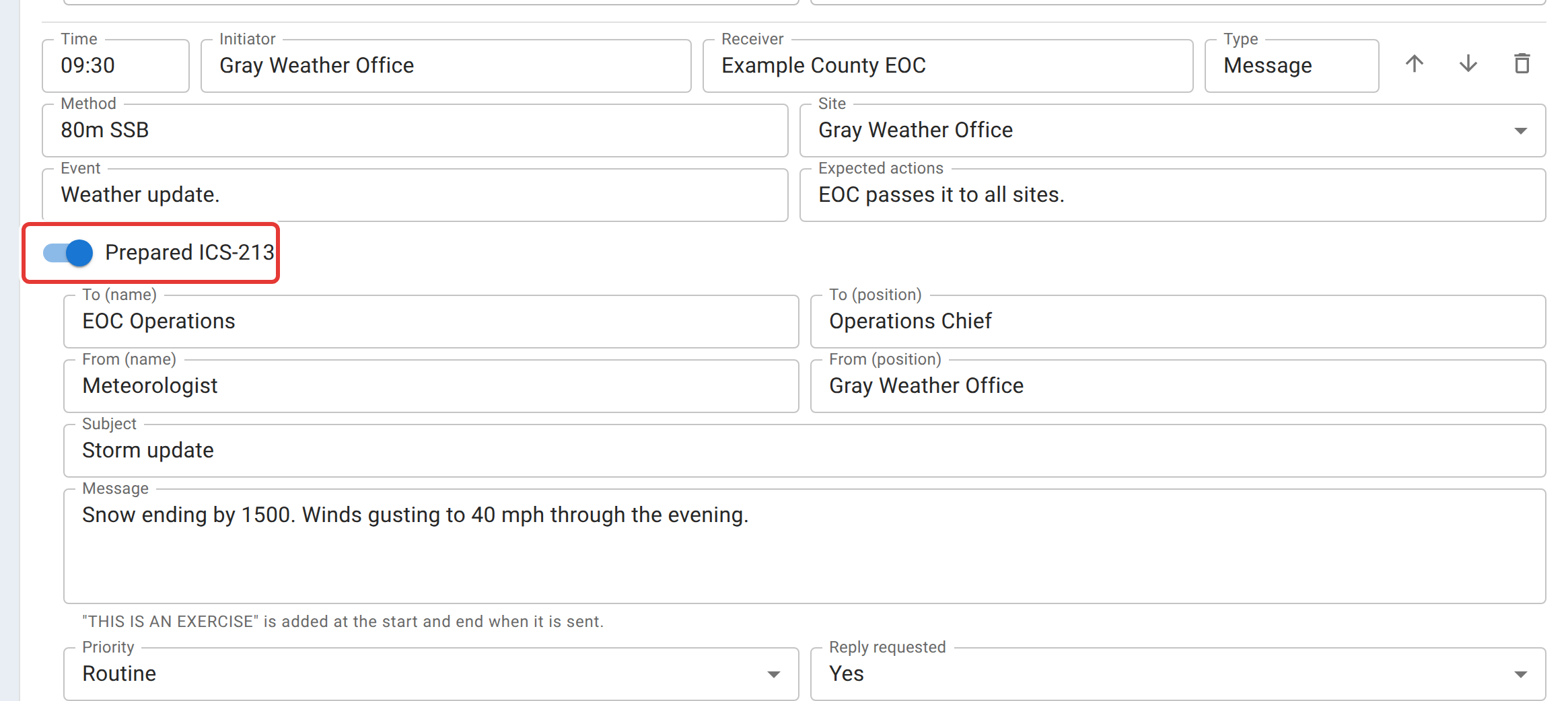
Don’t type “This is an exercise” into the message. It’s added at the start and end of the text when the message is printed or sent.
Print the plan and the site packets
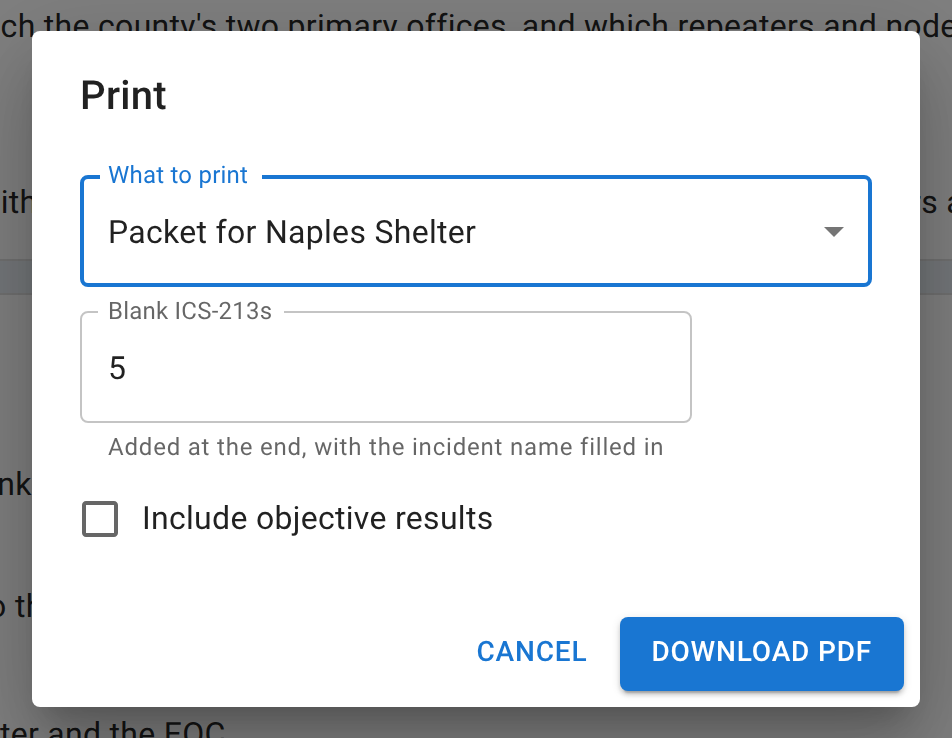
Click Print, choose what to print, and click Download PDF.
- The whole plan is for net control and the exercise leads: every objective, every row, and every prepared message.
- Packet for a site is what that site’s team carries: the overview, the objectives, the site’s own rows and the rows for every site, the messages it sends, each on a printed ICS-213, and blank ICS-213s for the traffic it writes on the day.
Every page is marked THIS IS AN EXERCISE at the top and bottom.
During the drill
Net control opens the plan with Drill plan in the net’s toolbar. It opens in its own tab, so the net and the plan can sit side by side.
When a site sends its message over the air, click Mark sent on the row. Sent by starts as the row’s site; change it to the station’s callsign if you want that on record. The message is filed as drill traffic on the net, with the exercise name as its incident name, and appears in the Traffic panel and on the ICS-309.
From there it’s ordinary traffic. When the receiving station has it, log Received on the message in the Traffic panel, then Delivered when it reaches the addressee. The row on the plan follows along: Not sent, Sent, Received, Relayed, Delivered. The page refreshes every 30 seconds, so everyone running the drill sees the same status.
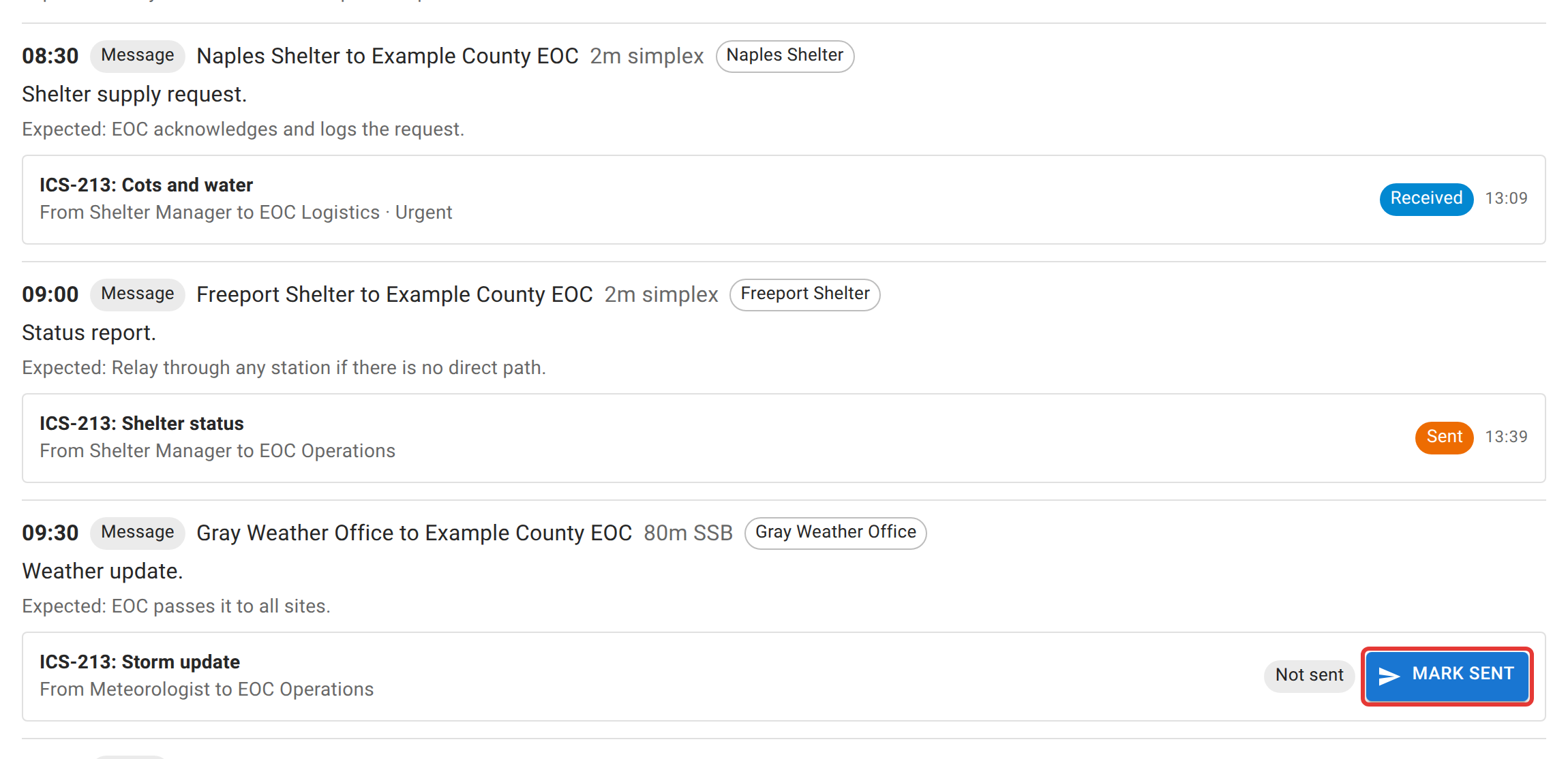
A message that was sent can’t be changed on the plan, because what went out is filed traffic now. Correct it from the Traffic panel like any other message.
Traffic a site writes on the day, on its blank ICS-213s, is filed from the Traffic panel as usual. Mark it as drill traffic so it prints with the exercise marking. See Handling traffic.
After the drill
At the hot wash, open the plan, click Edit, and give each objective a Result:
- Performed without challenges
- Performed with some challenges
- Performed with major challenges
- Unable to be performed
These are the ratings an after-action report uses. Add Result notes saying what happened, especially for anything short of the first. To hand the results on, print the whole plan with Include objective results ticked.
The coverage results, the traffic, and the net’s ICS-309 are in the net’s report and closing email, as for any net.
Related
- Coverage drills by site, for the sites, the primary offices, and the results by site.
- Handling traffic, for receiving, relaying, and delivering messages, and the blank ICS-213 pad.
- Reports, ICS-309, and exports.