Users and roles
The Users tab (Admin panel → Users) lists every account on the instance: name, callsign, email, role, whether they’re active or banned, when they were last seen, and when they signed up. It refreshes itself every 30 seconds, so you don’t need to reload to see someone come online. Filter by typing into the box above the table, and sort any column by clicking its header.
The four roles
Every account holds exactly one global role, shown as a colored chip in the Role column.
- Admin — full access to this panel, and the only role that requires two-factor authentication (see Security, MFA, and lockouts). An admin can see every net on the instance, but seeing a net is not the same as running it — see “Admin and net control” below.
- User — the default. Anyone who registers, or is invited without picking a different role, gets this. A User can create nets and schedules, check into nets, and do everything an operator does.
- NCS — assignable from the Edit User dialog, but as of this writing nothing in the app actually checks this global role for anything. It doesn’t grant control of any net by itself. Net Control authority is a separate, per-net thing (the NCS role on a specific net, assigned there, not here) — see Roles and permissions for how that actually works. Treat this global NCS role as a label for now, not a permission.
- Guest — also assignable here, and also not currently checked anywhere. Picking it changes the chip color and nothing else. Don’t confuse it with a guest check-in — a station logged into a net with no account at all, which is a completely different thing covered in The contact directory.
Because NCS and Guest don’t currently gate anything, the role you’ll actually use day to day is Admin vs. User: promote someone to Admin when they need this panel, and leave everyone else as User.
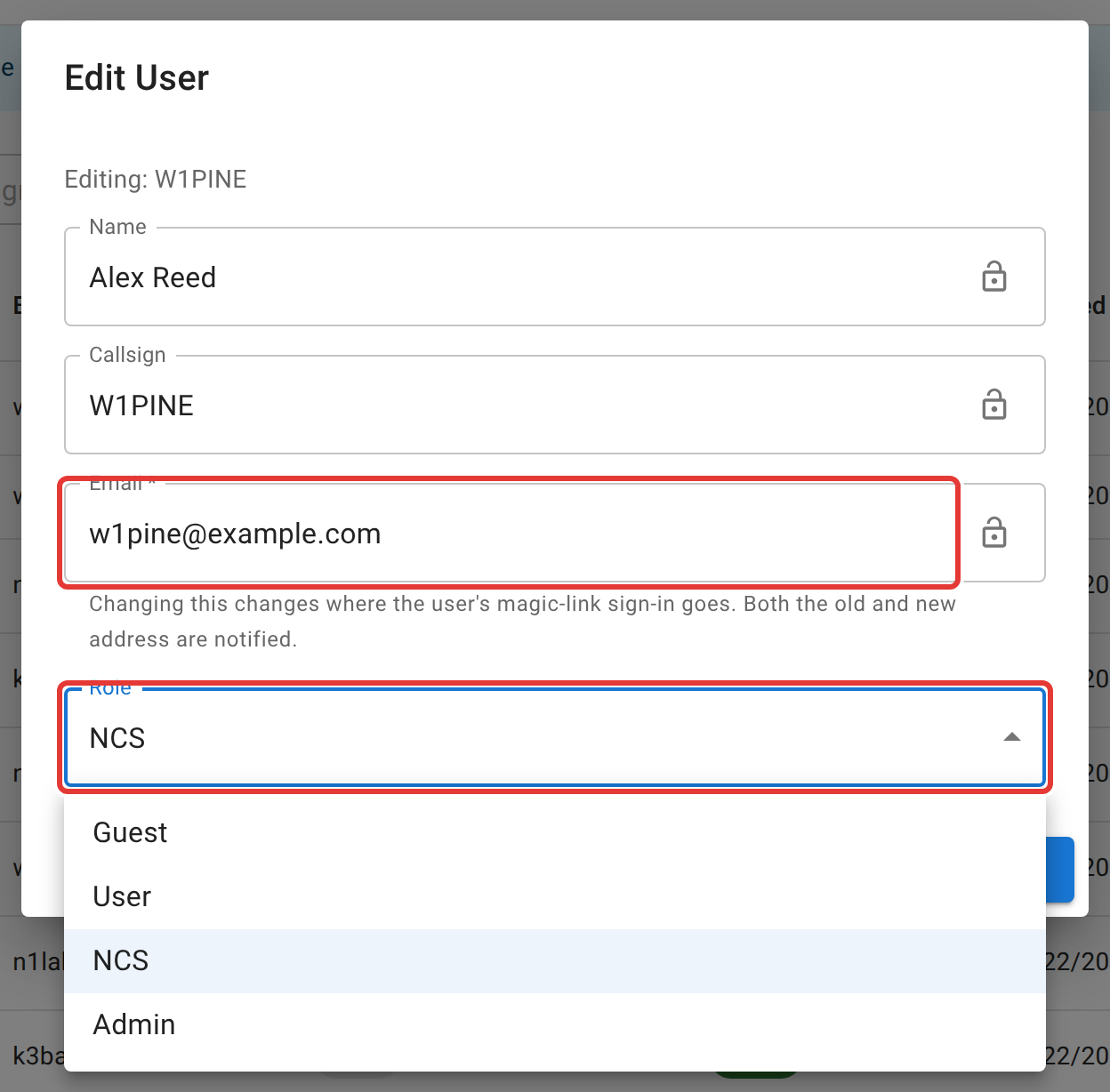
To edit someone’s name, callsign, email, or role: click the pencil icon in their row, make your changes, and save. Role changes take effect immediately, with no need for the person to sign out and back in.
This is also the recovery path for an account that lost access to the email it signed up with, since that’s the address magic-link sign-in goes to: put in the new address here and the person can sign in there instead. Both the old and new address get a notification email, so if you edit the wrong account by mistake, its owner finds out. Editing a callsign here works the same as the person changing it themselves from Profile — see the note on that below. Every name, callsign, email, or role change made from this dialog is recorded (who made it, when, old value, new value), even though nothing else in this panel keeps that kind of record.
Each of the Name and Callsign fields has its own padlock. Locking one stops the person from changing that field themselves from their own Profile page — useful after you’ve fixed something (a name that wasn’t a name, a mistyped callsign) and don’t want it typed right back in. It doesn’t stop you from editing that field as an admin, and locks are independent: lock just the callsign and leave the name editable, or vice versa. There’s a padlock on Email too, reserved for a future release — users can’t change their own email yet regardless, so it doesn’t currently do anything.

Admin and net control
Admin is a global role; NCS, Logger, and Relay are per-net roles held on one net at a time. An admin doesn’t automatically show up as NCS on anyone’s net, and doesn’t need to, because being admin already lets you open any net and, where it’s genuinely necessary, act on it. Don’t promote someone to Admin just so they can run a specific net; that’s what the schedule’s own staff list and rotation are for. See Roles and permissions for the full picture.
Inviting a new user
Click the person-plus button (bottom right). Email is required; name, callsign, and role are optional and the person can fill in their own name and callsign later. New accounts sign in with a magic link sent to that email; there’s no password to set up front. They can add a password of their own later from Profile → Security, as a fallback for when email delivery is down.
If the person has already checked into a net under a callsign you recognize, check The contact directory first. Inviting straight from an existing contact record carries their name and callsign over for you.
Banning, resetting, and deleting
Each row’s action icons cover the rest of account management:
- Ban deactivates the account (
is_activeoff). They can’t sign in, but nothing about their history changes, and it’s fully reversible with Unban. This is the right tool for “stop this person from logging in” in every case except one, described next. - Reset password issues a one-time temporary password, shown to you once. Share it with the person over a trusted channel, not email, if email is the reason they’re locked out in the first place. It never gets logged or emailed to them in the clear.
- Reset two-factor authentication clears their MFA enrollment so they can set it up again from scratch. Only shows up for accounts that have MFA enabled. Covered in more detail in Security, MFA, and lockouts.
- Delete permanently removes the account. It cannot be undone, and you can’t delete yourself or the account you’re currently signed in as. Check-ins that person already logged keep the callsign and name they typed at the time, since those are stored on the check-in itself rather than looked up live from the account. Anything that depends on the account still existing (their profile popup, being credited by a live link rather than by callsign) stops resolving once the account is gone. If your actual goal is “stop this person from doing anything,” Ban is almost always the better tool, since it’s reversible and Delete isn’t.
Changing someone’s primary callsign, whether from their own Profile or from this dialog, doesn’t lose their history either: the system remembers the old callsign and keeps their past check-ins and statistics attached to the same account.
Early access to schedule creation
If your instance requires an account to be a certain age or have checked into a minimum number of nets before it can create a schedule (set on the Security tab), a stopwatch icon appears next to accounts that don’t meet that bar yet. Click it to grant that one person early access anyway, which is useful for a known, trusted operator who just hasn’t hit the threshold. This applies to every schedule, including the one-time occurrence the dashboard’s + button creates behind the scenes when someone starts a net.
Early access bypasses the account-age and net-participation requirements only. It does not raise the daily cap on how many schedules an account can create — that limit still applies even to an account you’ve granted early access to.
Seeing the app the way everyone else does
Because an admin can do everything, an admin’s screen is not what a club member sees: every net shows management buttons, and the admin panel is one click away. To check what an ordinary account actually gets, open your avatar menu at the top right and choose View as Regular User. Admin-only controls disappear, the net and schedule pages offer only what your own roles and staff memberships would give you, and an orange User View chip sits in the navigation bar as a reminder. Click the chip, or Exit User View in the same menu, to switch back.
It changes what the screen shows, not what your account can do. The server still knows you are an admin, so treat it as a preview, not a test account: anything you click still happens with an admin’s authority. The setting is remembered in that browser until you turn it off or sign out.
Not here
The full grid of what each role and each per-net position can actually do lives in Roles and permissions. Net-specific staff (who’s on a schedule’s rotation, who can log in as NCS for one particular net) is set from that net or schedule, not from this panel; see net managers.