Signing in
There are two ways into your account and one optional thing that sits on top of both. The magic link is the normal way and needs nothing set up. A password is a fallback you turn on yourself, for the night email isn’t working. Two-factor authentication adds a six-digit code to whichever of those you used.
You don’t choose one and give up the others. All three can be live on the same account at once.
Sign in with a magic link
- Go to the sign-in page and type your email address.
- Click Send Magic Link.
- Open the email and click the link in it.
That is the whole thing. If nobody has ever signed in with that address, clicking the link creates the account right then, so there is no registration form to fill in first.
The link stays valid for 30 days, which is deliberate: during a multi-day activation, nobody wants to be signed out at three in the morning. Bookmark the email rather than retyping your address each time and it will sign you back in instantly, even if your browser clears its cookies or you move to another device.
If the message has not arrived in a minute or two, check your spam folder. If your club runs its own instance and no message ever arrives, that is the server’s mail configuration and not something you can fix from here; tell whoever runs it.
If the sign-in page does nothing
Two browser settings break sign-in in ways that don’t look like browser settings.
Scripts blocked. ECTLogger is a JavaScript application. With scripts blocked for the site, by NoScript, a privacy extension turned up to strict, or a policy set by whoever manages the computer, the page still draws but its buttons do nothing at all.
An ad or privacy blocker. The addresses ECTLogger uses to send a magic link and to complete one both have the words magic-link in them, and some blocker lists match on that, so the request never leaves your browser. It looks like a fault at our end: Failed to send magic link when you click the button, or a link from your email that opens a page which never finishes signing you in. That is why the error message on screen mentions your ad blocker.
The fix for both is to allow this one site in whichever extension is responsible, by allow-listing app.ectlogger.us or your club’s own address, rather than turning the extension off everywhere. A private window normally runs with extensions disabled, so if sign-in works there and not in an ordinary tab, you have found your answer.
Set a password
A magic link needs a working inbox, and there are nights when you don’t have one. Your club’s mail server has a bad day, your provider decides ECTLogger is spam, or you are operating from somewhere you can reach a repeater but not your email. A password gets you in with nothing but the browser in front of you.
- Open Profile, then the Security tab.
- Type the password you want into Password, and again into Confirm Password. If you already have one, that first field reads New Password and there’s a Current Password above it to fill in first.
- Click Set Password, or Change Password if you’re replacing one.
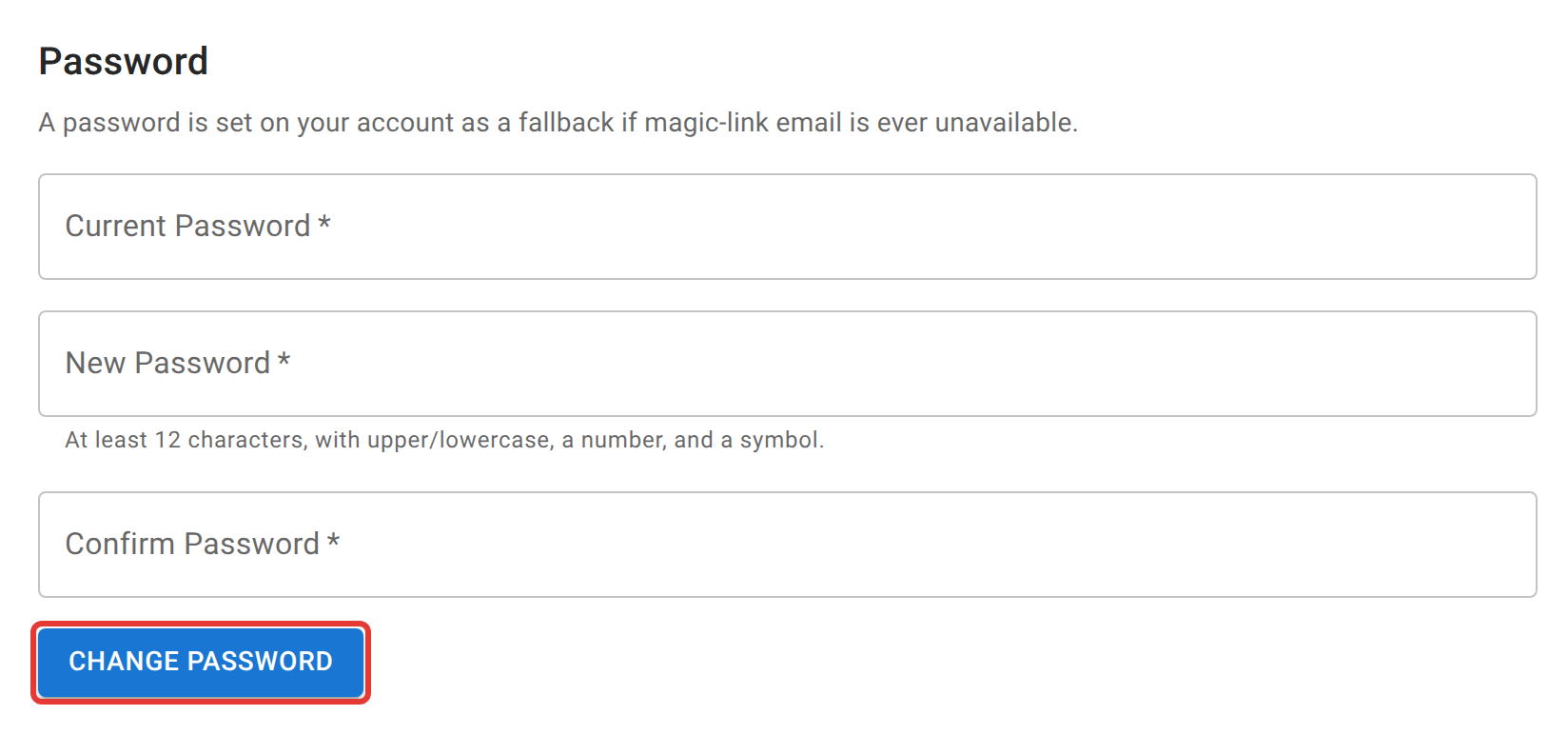
It has to be at least 12 characters and contain a lowercase letter, an uppercase letter, a number, and a symbol.
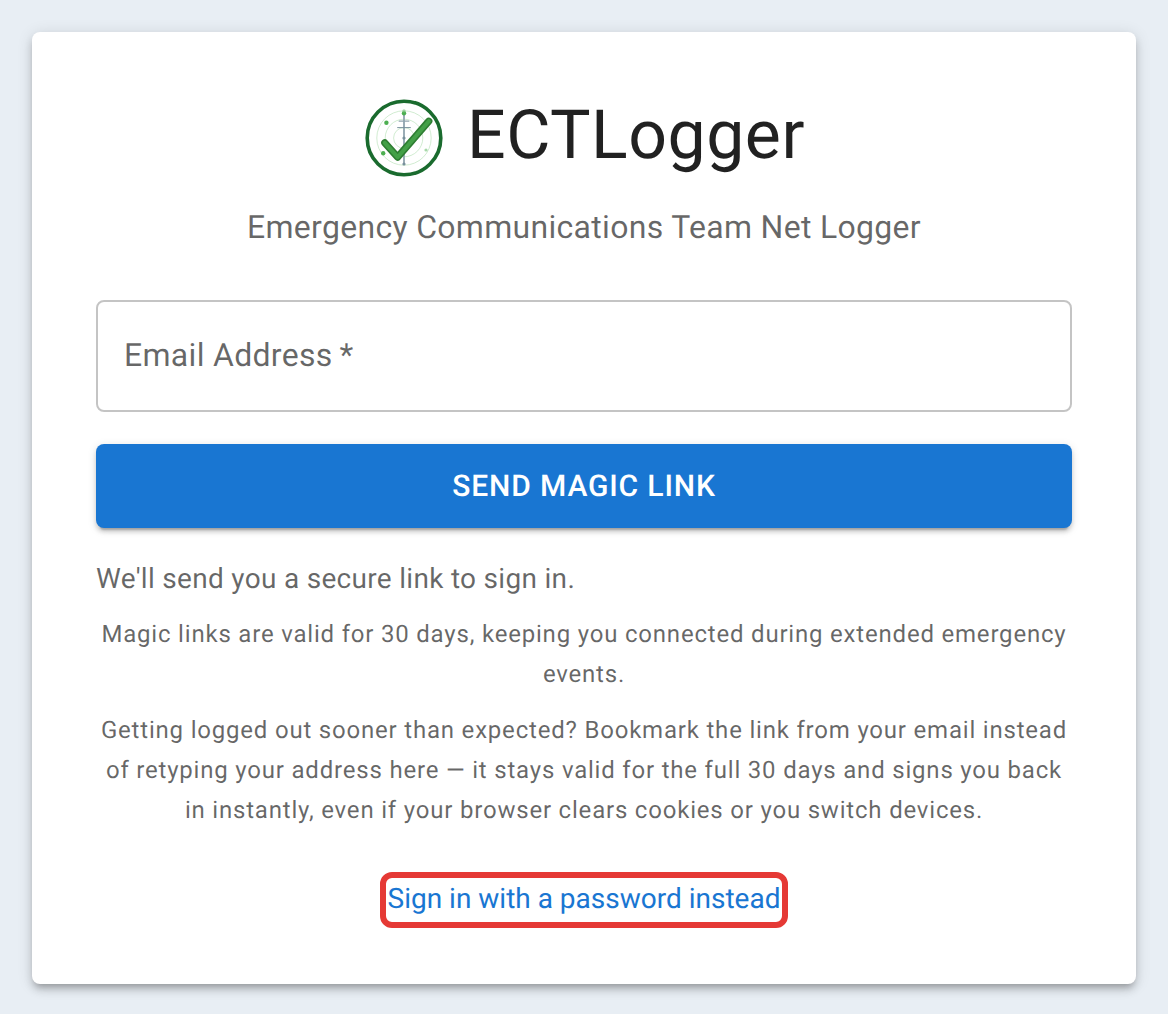
To use it, click Sign in with a password instead at the bottom of the sign-in page. That swaps the single email field for Callsign or Email and Password. Either your callsign or your email address works in the first one. Use a magic link instead switches back.
Five wrong passwords in a row lock password sign-in on that account for 15 minutes. Your magic link still works during a lockout, so this is an inconvenience rather than a way to get shut out of your own account.
Turn on two-factor authentication
Two-factor authentication (MFA) means that after your password or magic link, ECTLogger also asks for the six-digit code from an authenticator app on your phone. It’s optional for everyone except admins, who are required to have it.
Worth turning on if your account can do damage: you run a net, you own a schedule, or you hold a role where somebody impersonating you would be believed on the air. It also makes you verifiable on an authenticated net, where Net Control confirms a station really is the account it claims to be by comparing that same code over the air.
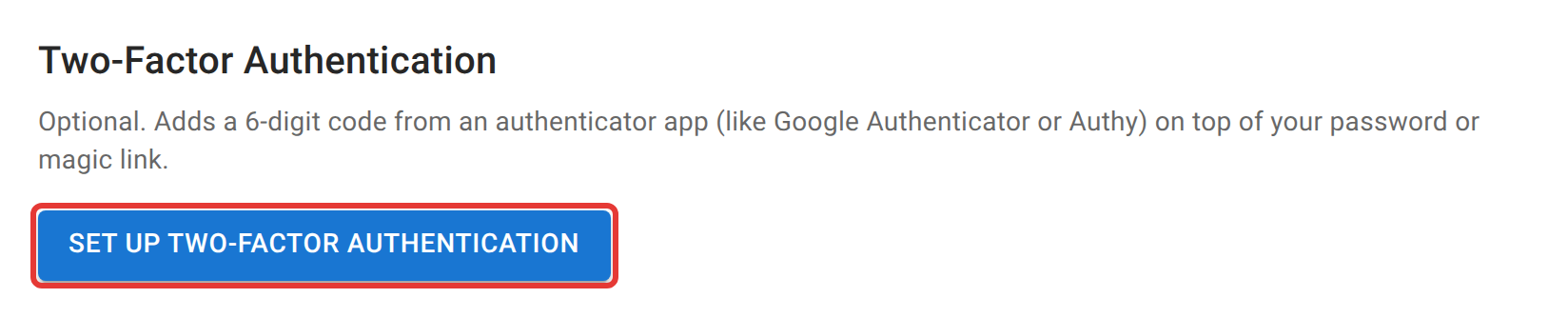
- Open Profile, then the Security tab, and click Set Up Two-Factor Authentication.
- Scan the QR code with your authenticator app. If you can’t scan it, the key is printed underneath with a button to copy it, and every app takes a typed key.
- Type the six-digit code your app now shows into Verification Code and click Confirm.
- ECTLogger shows eight one-time backup codes. Save them, then click I’ve Saved These Codes.
Save the backup codes somewhere other than the phone running the authenticator. They exist for the day that phone is lost, stolen, or in pieces on the shoulder of Route 302, and a copy stored on it is no copy at all. Each one works once.
What changes once it is on
- Every sign-in asks for a code, including a magic link. After you click the link, the page asks for the six digits before it finishes signing you in. People expect the second factor to apply only to the password, and it doesn’t.
- A backup code works anywhere the app’s code does, once each. You get eight.
- Replace Authenticator, on the same Security tab, moves your account to a new phone. It asks for your password, then runs the same scan-and-confirm and issues a fresh set of backup codes, which retires the old set.
- Disable turns it off again, and also asks for your password.
Admin accounts are the exception: an admin cannot disable or replace their own two-factor authentication, because an admin who could turn it off on demand would make it optional in practice. Another admin resets it for them.
If you lose your authenticator
Work down this list:
- Sign in with a backup code in place of the six digits, then use Replace Authenticator to enroll the new phone. This is the whole reason the codes exist.
- Out of backup codes: ask an admin on your instance to reset your two-factor authentication. That clears the enrollment so you can set it up again from scratch, and it is a normal thing to ask for. See security, MFA, and lockouts for what they do at their end.
- You are the only admin: nobody can reset it through the app, by design. It takes a command run on the server itself. Whoever has shell access to the instance will find it in passwords and two-factor authentication.
Next
Your account and profile covers everything else on the Profile page: your callsign, your default location, and what other operators can see about you. In the field is the phone-and-battery version of all of this, including why a password is worth setting before you need it.