Filing traffic
“Traffic” here means a formal message, not just a status flag: an ARRL Radiogram, an ICS-213 General Message, or an RRI weather strip (used by SKYWARN nets reporting to a National Weather Service office, such as a WXOBS weather observation). Filing one records it as its own document with its own life after the net, not just a line in the check-in list.
You need to be signed in to file traffic, but it isn’t gated behind any role, so any signed-in participant can file a message, not only NCS or Logger.
Filing a structured message is a different thing from setting your check-in status to Has traffic (see Status, rechecks, and checking out). The status flag just tells NCS you have something to report and needs to be picked up on the air; filing the actual form is what turns that into a message with its own fields, its own handling history, and its own place in the net’s records once it’s relayed or delivered.
Where you file from
There are two ways in, and which one you get depends on your role, not on the net.
The Traffic section in the top navigation bar is the one you will use. It is always there, for every signed-in operator, and it is where your own traffic lives regardless of which net it came from.

The net’s own Traffic panel, opened from a button on the net toolbar, shows everything filed on that one net side by side with the filing form. That button only appears for the net’s manager, an admin, or someone currently holding NCS or Logger on it, so as a participant you will not see it even on a net that has traffic turned on. It is covered in handling traffic on the net control path.
That split is deliberate rather than an oversight: traffic is visible to the people in its chain of custody plus that net’s staff, so a panel listing everyone’s traffic on a net is a staff view. Filing itself is open to anyone signed in.
From either one, filing a new message opens a picker of the message types the net accepts, then the form itself:
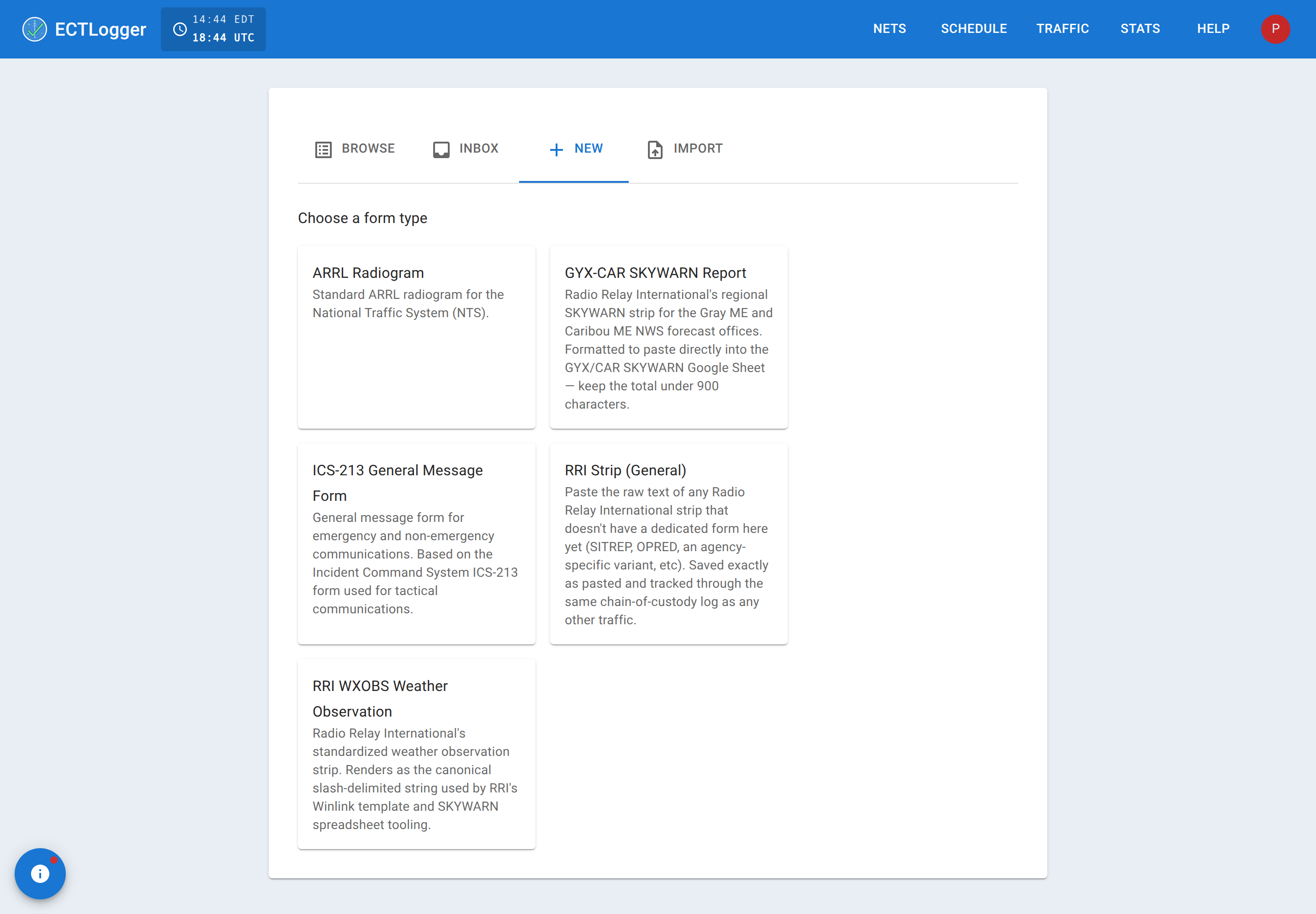
Pick a type, fill in the fields it asks for, and file it. A radiogram or ICS-213 asks for the standard fields of that form. An RRI weather strip, if the net has one configured, asks for exactly the fields that strip defines. The labels come straight from what the net is set up to collect, so they won’t look like a generic form.
Filing without a net
The Traffic section of the app (reachable once you’re signed in) has four tabs: Browse (every message you have access to), Inbox (traffic currently held by you, badged with a count, the same number your Activity tab calls Traffic Pending), New (the same composer described above, usable with or without a net attached), and Import. Filing from here without picking a net produces a standalone message, still yours, still tracked, just not attached to any check-in list.
What happens after you file it
Your message shows up in the net’s Traffic panel for whoever is watching it, and you can still edit it yourself right up until someone acts on it by relaying it, delivering it, or otherwise logging a step in its handling. Once that happens, the message becomes append-only: nobody rewrites a message that’s already gone out over the air, including you. Corrections from that point happen by adding a new entry to its handling log, not by editing the original text. You can always see the full chain (who received it, who relayed it, who it was delivered to) for any message you filed or ever touched.
If you end up holding a piece of traffic and it sits without moving for a while, ECTLogger sends you an email reminder automatically so it doesn’t get forgotten. There’s nothing you need to turn on for that.
Related
Your statistics counts traffic you’ve originated, relayed, or delivered, and separately tracks anything you’re currently holding that hasn’t moved yet.