Security, MFA, and lockouts
Two-factor authentication (MFA: a code from an authenticator app, on top of your password or magic link) is optional for a regular account and mandatory for an admin. This page covers what “mandatory” actually means, how to recover someone who’s locked out, and the other settings that live on the Security tab alongside it.
Why admin MFA can’t be skipped
An admin can read every net and edit every user, which makes that account worth stealing more than any other on the instance. So the requirement isn’t just enforced at sign-in. It’s checked on every single admin-only action, every time. An admin who hasn’t enrolled yet can still sign in normally; they’re just sent straight to enrollment (Profile → Security) and the admin panel stays out of reach until they finish. There’s no way to reach it with an old session or a half-finished setup.
Enrollment itself (scanning a QR code into an authenticator app, confirming the first code, and saving the one-time backup codes) happens on each person’s own Profile → Security tab, not here; signing in is the page to send someone who asks how. This page is about what happens when that goes wrong for someone else.
Resetting someone’s two-factor authentication
If a person loses their phone or their authenticator app, they can’t get back in with their old codes and their backup codes are only good for one use each. Reset it for them from the Users tab: find their row and click the two-factor reset icon (only shown for accounts that currently have MFA enabled). They’ll need to enroll again from scratch the next time they sign in.

One thing that reset can’t do: an admin can’t use it on their own account. That’s deliberate: letting an admin reset their own MFA on demand would make the mandatory requirement meaningless.

If the locked-out admin is the only admin
Ask another admin to reset it from the Users tab as above. If there genuinely isn’t another admin account on the instance, the recovery path moves off the web entirely: someone with server access runs backend/scripts/reset_admin_mfa.py with that admin’s callsign or email. Requiring host access here is intentional: “the only admin lost their phone” shouldn’t be recoverable from a browser alone. See self-hosting if that’s not you.
Resetting a password
The same Users tab row has a Reset password icon, for someone who’s locked out and can’t retrieve a magic link either (email down, wrong address on file, and so on). It generates a one-time temporary password shown to you once (pass it along over a channel other than email if email is the actual problem), and the person is told their password changed, but never told what it is. They should set their own from Profile → Security the first chance they get.
Failed-login lockouts
Five wrong password attempts in a row locks that account out for 15 minutes. This threshold is fixed in the software rather than something you can tune from this tab; it exists alongside, not instead of, the IP-level protection below.
Fail2Ban status
If the server this instance runs on has Fail2Ban configured, its status shows here: whether it’s installed and running, how many IPs are currently banned, and a manual Unban for any of them. The actual ban thresholds (how many failed attempts, over what window, for how long) are set in a server configuration file, not on this tab. See self-hosting to change them.
Session length
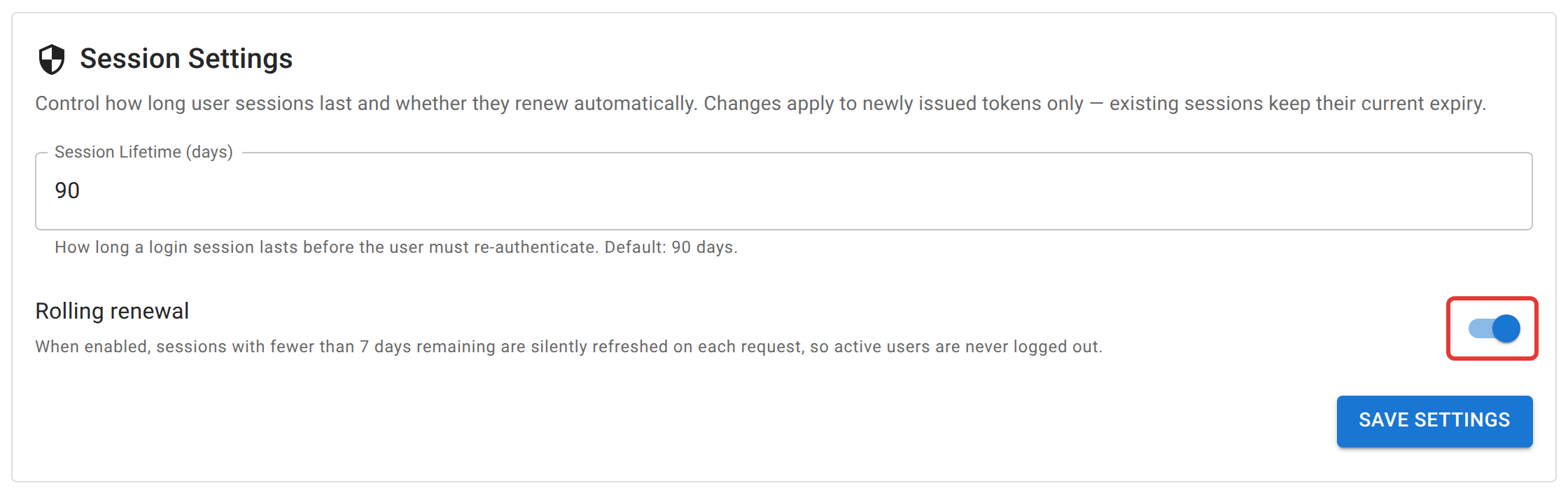
Set how many days a signed-in session lasts before someone has to sign in again, and whether rolling renewal is on. When it is, a session with less than a week left quietly refreshes itself on the next request, so someone actively using the app is never logged out mid-net. Changing either setting only affects sessions issued from that point forward; nobody already signed in is affected until they sign in again.
Also on this tab
Two more controls live on Security because of what they protect, not because they’re about login attempts specifically:
- Profile photos (Gravatar) — turns off third-party avatar lookups. When it’s off, no browser on this instance ever contacts gravatar.com; everyone without an uploaded photo just gets their initials instead. Uploaded profile photos keep working either way. Worth turning off on an isolated or restricted network (an emergency operations center or agency network, for instance) where outbound contact to a public third party isn’t wanted.
- Schedule creation limits — minimum account age, minimum number of nets checked into, and a daily cap, all for who may create a schedule. This covers every schedule type, including the one-time occurrence the dashboard’s + button creates behind the scenes when someone starts a net — there’s no separate, looser rule for starting a single net. Admins bypass all three; the per-account early-access override in Users and roles bypasses only the age and participation requirements, never the daily cap.
Not here
Enrolling in MFA, replacing a lost authenticator (while you still have access), or turning MFA on or off for your own non-admin account all happen from your own Profile → Security tab, not the admin panel.