Chat, polls, and topics
Every net has a text chat alongside it. It’s a second channel, not a transcript of the net, and useful for a side comment, a link, a question you don’t want to key up to ask, or just following along if you’re listening rather than transmitting.
You need to be signed in to send a message. Signed-out visitors can still read chat on a net they’re viewing.
Sending a message
Type into the box at the bottom and press Enter. You can:
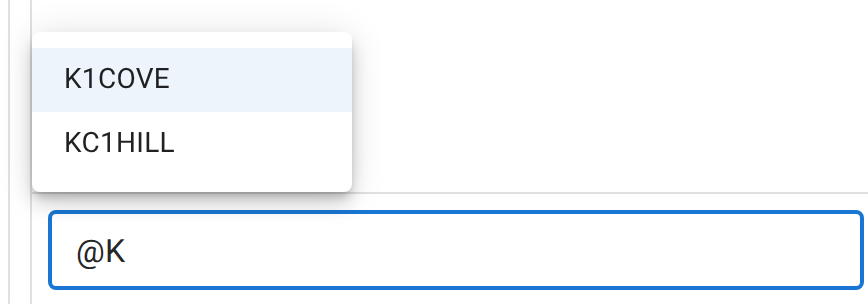
- @mention a station by typing
@and picking from the list that pops up. The list is deliberately narrow: it offers only stations checked into this net who have an account and have the app open right now, because a highlight has to land somewhere to be worth suggesting. You can still type a callsign out by hand if the operator you want isn’t in the list. The mention is resolved against everyone checked into the net, so it will be waiting for them when they next open the message. - Paste an image (PNG, JPEG, or WEBP) directly into the composer.
- Reply to a specific message by hovering it and clicking the reply icon. Your reply carries a small quote of the original above your text, Signal-style. Clicking the quote jumps back to the original message.
Reacting to a message
Hovering over someone else’s message shows a small row of emoji reactions. Click one to add it; the count appears under the message, and clicking a reaction you’ve already added removes it. You can’t react to your own messages (the backend rejects it), which is why the reaction row only appears when you hover a message from someone else.
Editing and muting
Hovering your own message shows an edit pencil (text messages only; an uploaded image can’t be rewritten). Editing replaces the message in place and marks it “(edited)”; there’s no version history, because the point is a corrected net log, not a paper trail of typos.
Hovering anyone else’s message shows a mute icon: mute this station, for you only. It hides that callsign’s messages in your own view of this one net. Nobody else is affected, and it doesn’t touch the net’s actual log or export. A banner above the chat shows how many stations you (or, on a net with staff-applied mutes, anyone) currently have muted, with a manage list to undo it. If Net Control has muted someone for the whole net (a moderation action, not something a participant can do), you won’t be told who did it, only that the station is muted.
Topic of the Week and the poll
If a net has a Topic of the Week or a poll running, you don’t answer it in chat. You answer it right in the check-in form, which shows the live question as context above a text field for your response. Results (a tally for a poll, a list of responses for a topic) are shown as a summary once the net closes.
This is a separate feature from chat itself; the two happen to be enabled by the same kind of net (a community/club net rather than a formal traffic net), which is why they’re covered on one page.
Activity, separately from chat
Chat itself never shows check-in, check-out, or other system events. Those post to a separate Activity Log panel next to chat, not into the conversation. If you want to follow who’s coming and going without it mixing into the actual conversation, that’s the panel to open. There’s no way to turn chat off entirely for a net you’re viewing; muting individual stations (above) is the tool for filtering what you see there.