Handling traffic
Some nets carry formal message traffic (ARRL radiograms, ICS-213 general messages, or a SKYWARN weather strip) alongside ordinary check-in logging. If a net has Assisted Traffic Handling turned on, NCS, Logger, and the net’s manager get a Traffic panel for filing and tracking it, right on the net view.
Who sees it
The toolbar’s Traffic button only appears when a net has traffic handling enabled and you’re the net’s manager, an admin, or hold an active NCS or Logger role on it. A Standard participant never sees this button on the net view, even on a traffic-enabled net. Their own way to file traffic is the Traffic item in the top navigation bar instead, covered on the operators path.
Stepping down to Standard from Role: NCS takes the panel away with it, the same as every other staff control. The figures on this page are taken from the net manager’s seat; the panel looks the same from any of them.
The traffic panel
Clicking Traffic opens a panel beside the check-in list: a summary strip showing how many pieces of traffic are in each state (draft, pending, relayed, delivered, cancelled, and how many are outstanding), and a short list of recent forms filed on this net.
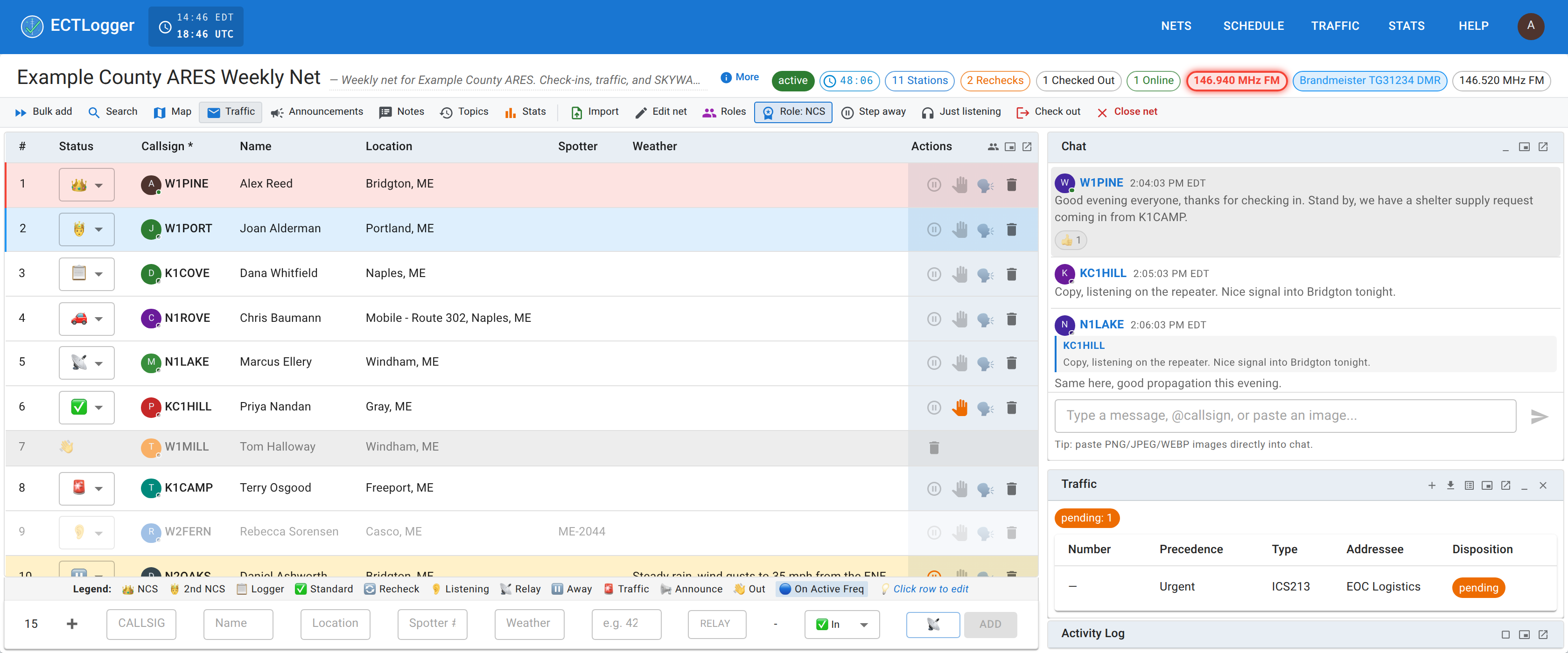
Like Chat and the Activity Log, this panel can be detached into a floating overlay or popped out into its own window; see Multiple monitors and wide screens. Clicking any row opens that form’s full detail, with a back arrow to return to the list.
Filing traffic
The + in the panel’s header opens the filing dialog, offering the message types this specific net has enabled.
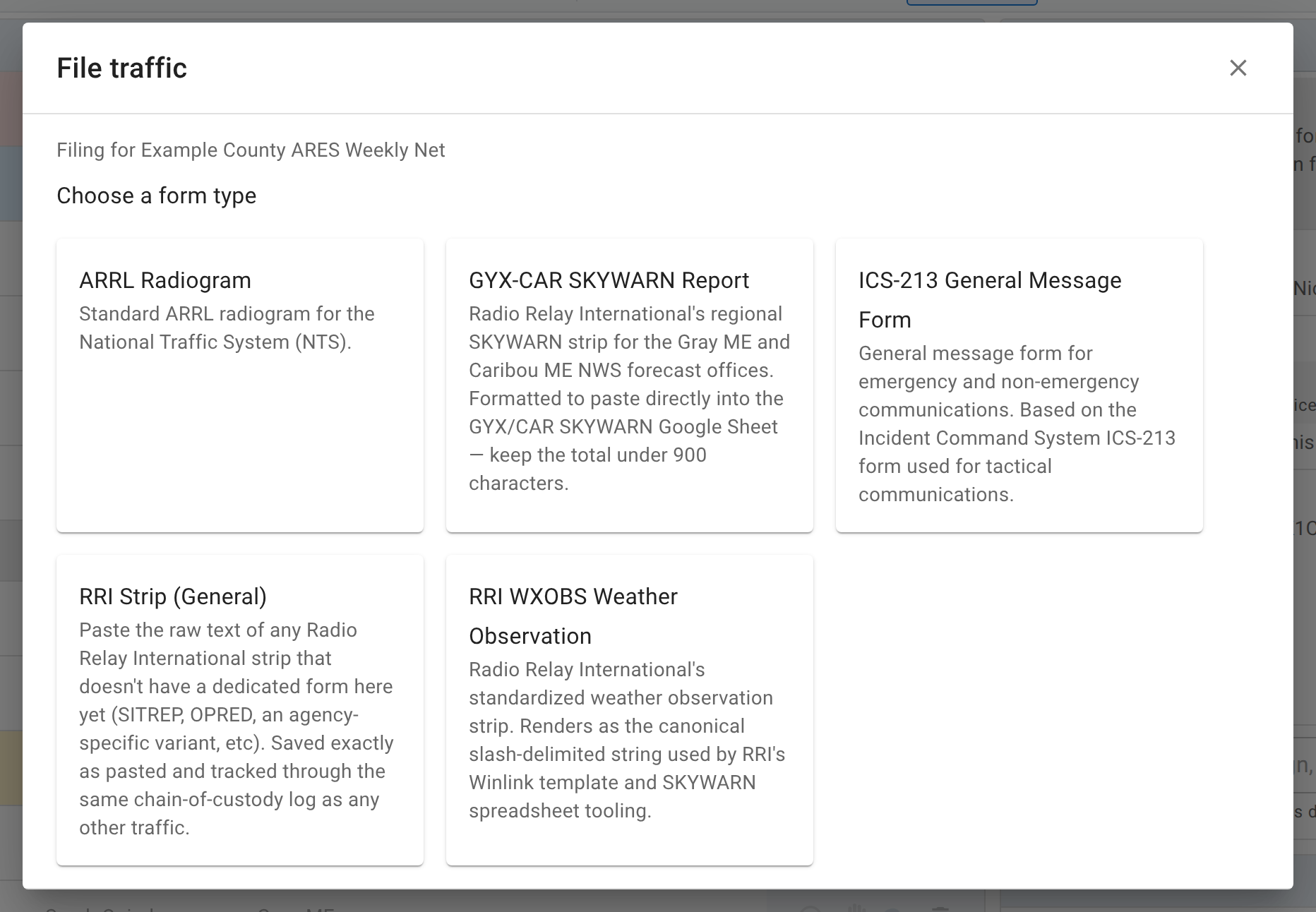
Fill in the form for whichever type you picked and submit. It appears in the panel immediately, and every other viewer’s Traffic panel and the site-wide traffic inbox badge refresh live to reflect it.
Logging the chain of custody
Open a piece of traffic’s detail view and you’ll find its chain of custody, an append-only log of everything that’s happened to that message: originated, received, relayed, delivered, serviced (reported back to the originator), or cancelled. Log Handoff adds the next hop: pick the action, optionally the method (voice net, phone, email, in person, and so on), who actually handled it, who it was handed to, and a note if it needs one.
Two things worth knowing about this log:
- It’s genuinely append-only. There’s no edit button. If a hop was logged wrong, the fix is logging a corrected entry afterward, not changing history. Only an admin can remove an entry, and only the single most recent one, for a real mis-click rather than as a general undo.
- “Handled by” defaults to your own callsign, since the common case is logging something you just did yourself, but it’s a plain editable field, so change it when you’re logging a hop someone else told you about over the net rather than one you performed.
Your inbox
Any piece of traffic currently held by you, meaning something you originated or received that hasn’t moved on yet, shows up in your own traffic inbox, with a count badge in the top navigation bar. That’s the same inbox regardless of which net the traffic came from, so it’s worth checking even after a net you were running has closed.
When something sits too long
Nothing relies on you remembering the message in your pocket. While a piece of traffic is still pending, ECTLogger emails whoever is currently holding it, escalating as it ages, and how fast that happens is set by the message’s own precedence: an Emergency message is chased after an hour, a Priority one after four, a Routine or Welfare one after a day. Each level gets three reminders, spaced further apart each time. A message carrying an HXB handling instruction, which names its own expiry in hours, follows that deadline instead: one reminder at the halfway mark, and a final notice when the time is up. Emails we send lists the exact intervals.
The clock starts when the message reaches you, and the reminders stop the moment you log the next hop. There is nothing to mark as done: relaying, delivering, or cancelling it is what ends them, and until one of those happens the message is still yours as far as ECTLogger is concerned. Drill traffic is chased exactly like the real thing; demo traffic never is.
Exporting
The panel’s export button offers two genuinely different outputs: Text, one line per report, good for pasting into a spreadsheet or a Winlink template; and PDF, every report rendered as its real form (a radiogram pad, an ICS-213, or a strip layout) for printing or handing off on paper.
Next
Closing the net covers what happens to a net’s traffic once the net itself closes, and Authenticated nets covers the other identity-adjacent staff tool on the net view.