Station coverage
Station-to-station coverage logging records which checked-in stations can hear each other directly. It’s built for the question every emergency communications plan eventually has to answer: if the repeater goes down tonight, who can still reach whom on simplex, and where do you need a relay? A monthly simplex drill that logs coverage answers that from real reports instead of guesses, and the answers pile up net after net.
It’s off unless the net’s manager turned on Enable Station-to-Station Coverage Logging in the net’s or schedule’s settings (see Creating a net). On a net that has it, you’ll see an ear icon at the end of each check-in row and a Coverage button in the toolbar.
Who can record a report
- NCS, Logger, and Relay on this net can record a report for any station, as can the net’s manager and an admin.
- Each station can record its own, from the I hear button, unless the manager also turned off Allow stations to self-report. That side is covered in Reporting what you hear.
- Schedule staff who haven’t taken a role on this net can only record their own. To record for others, take NCS or Logger first by checking yourself in as one (see Roles and stepping away).
Record a station’s report
- Ask the station, on the air, which stations it can hear.
-
Click the ear icon at the end of that station’s row. A solid blue ear means the station already has a report; a faded one means it doesn’t yet, which makes the rows still to do easy to spot down the list.
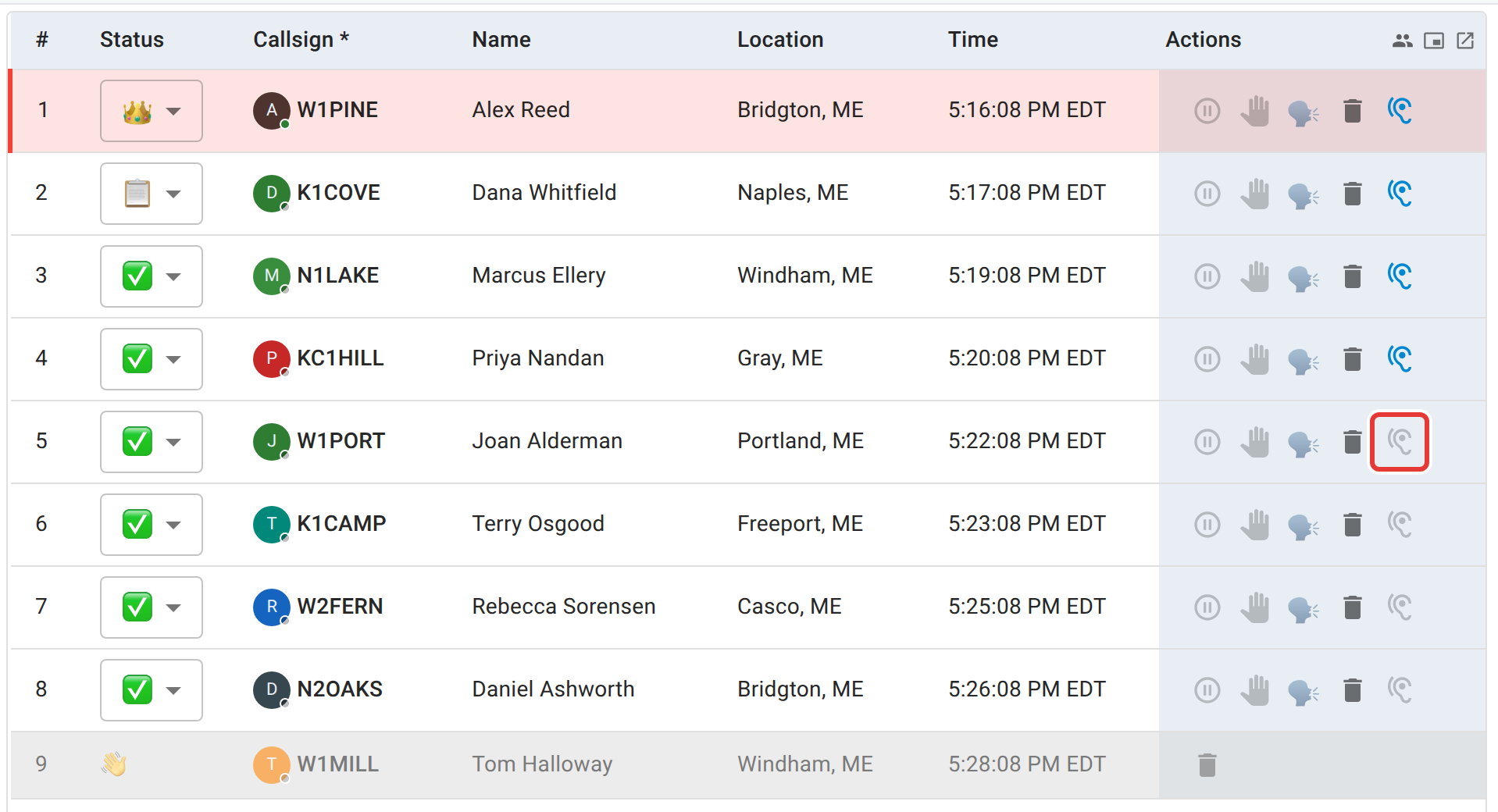
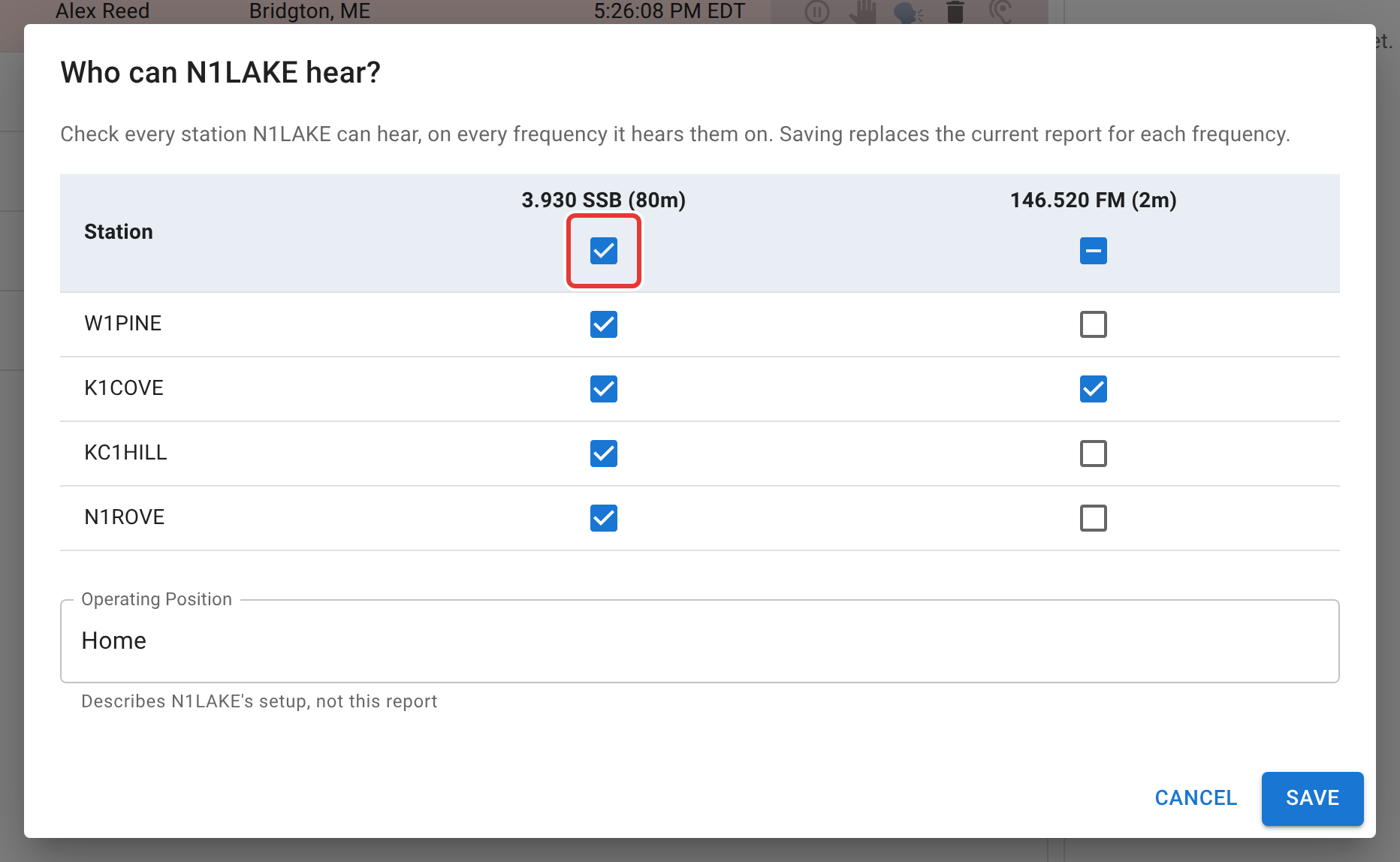
A solid ear means that station's report has been taken. Faded means it's still to do. - Tick each station they name. For “everybody but W2FERN and N2OAKS”, tick All stations at the top, then untick those two. All stations includes checked-out stations, because a station heard before it left was still heard; untick any that weren’t.
- Set Operating Position if they aren’t at home. It starts at Home, and only Home reports reach the station’s personal coverage map.
- Click Save.
Saving replaces that station’s previous report for that frequency. To correct one, open it again: the dialog shows what’s already recorded. A checked-out station’s row has no ear icon, since there’s nobody left on the air to ask.
On a net with more than one frequency
The dialog turns into a grid with one column per frequency, so a combined repeater and simplex drill, or a 2m and 80m comparison, is recorded in one pass. Each column has its own select-all box under its heading, and saving records every column, including any you left empty.
Read the coverage table
Click Coverage in the toolbar to open the Station Coverage panel. Anyone viewing the net can open it, not only staff, and it updates live as reports are saved.
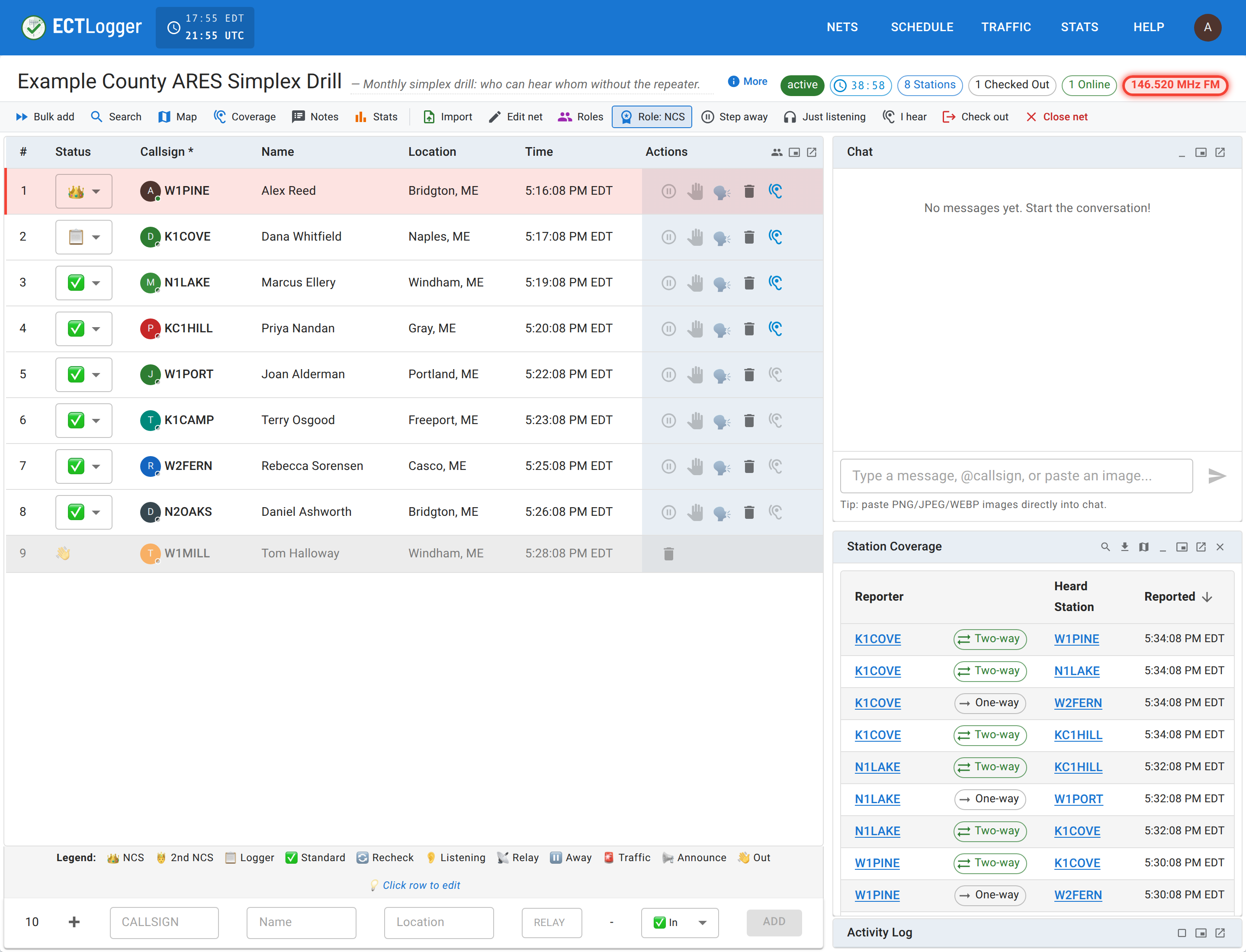
Each row is one report: the Reporter, a Two-way or One-way chip, the Heard Station, and when it was reported. On a net with more than one frequency there’s a Frequency column too.
- Two-way (green, double arrow) means each station reported hearing the other on the same frequency. That’s a confirmed path.
- One-way (grey, single arrow) means only one direction has been reported. It might be a genuinely one-way path, a big station and a small one, or it might just mean the other station hasn’t been asked yet. Ask before you plan around it.
The panel’s own buttons, left to right:
- Search filters the table to one callsign. It hides every other row, so clear it when you’re done.
- Click a callsign in the table instead to highlight that station’s rows without hiding anything; it highlights the station’s lines on the map overlay as well. Click it again, or the clear-highlight button, to undo it.
- Export to CSV downloads exactly what the table is showing, filter included.
- Show on map opens the map with the coverage overlay already on.
If a report was saved against the wrong frequency, staff (and the station that made it) can fix it from the Frequency column’s dropdown without redoing the report. Like Chat and the map, the panel can be floated or popped out into its own window; see Multiple monitors and wide screens.
See it on the map
Open Map, then click the ear button at the top right of the map to turn on the coverage overlay. Every report becomes a line between the two stations: solid amber for a two-way path, dashed grey for one-way.
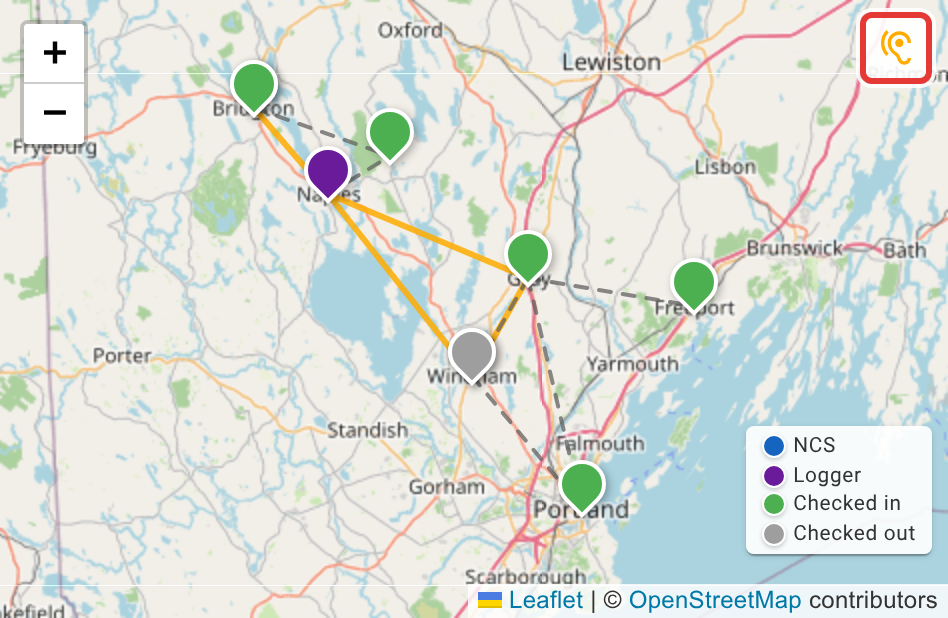
On a net with more than one frequency, a dropdown beside the ear button limits the lines to one frequency. A station with no location the map can place has no pin, so its lines aren’t drawn; the table above still has every report.
After the net
- The closing email includes a Station Coverage section listing each pair of stations, with two-way pairs shown once rather than twice.
- The net report has a Station Coverage section with the same table, and a switch, Include per-station coverage maps, that adds one small map per reporting station to the report and its PDF. See Reports and exports.
- Each station’s Profile > Coverage map picks up every Home report about what that station heard, including the ones you entered for them.
Next
The operator’s side of this, including the personal map, is Reporting what you hear. Turning it on for a net or a schedule is Creating a net.