Closing the net
Closing a net is a real state change, not a formality: it ends the live session, generates the log, and notifies whoever’s subscribed to hear about it. This page covers what actually happens and what your options are afterward.
Closing it
Close net is on the toolbar for the net’s manager, an admin, and anyone currently acting as NCS or Logger on the net. If you’re on the schedule’s net staff but haven’t taken a role on this occurrence, check yourself in as NCS or Logger first and the button appears. It asks you to confirm first:
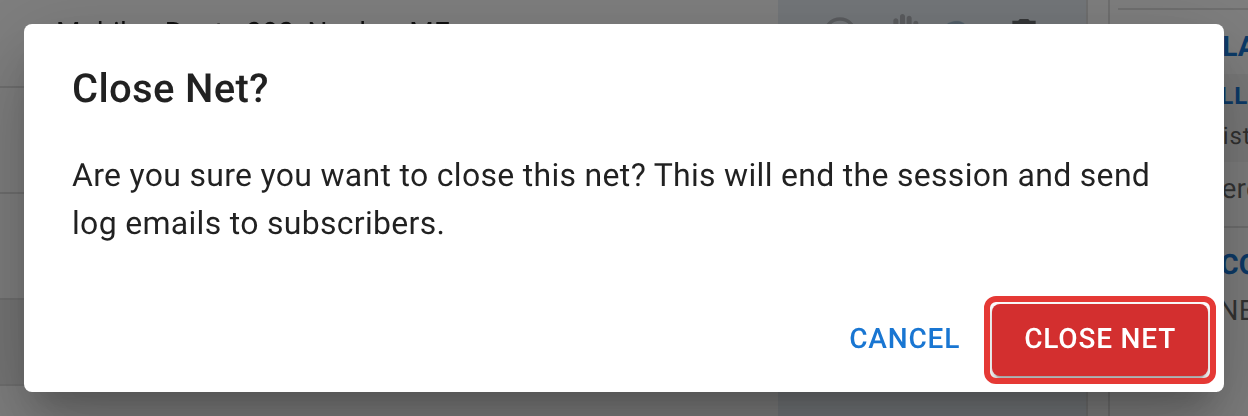
Confirm, and the net’s status moves to Closed immediately for every viewer.
What happens the moment it closes
- A system message posts to the net’s chat noting it closed.
- A log email goes out to the net’s manager (if they’ve opted in), anyone explicitly subscribed to this schedule, and every active NCS, Logger, and Relay who actually worked this specific occurrence and hasn’t opted out. Running a net is enough to get a copy of its own log, even without a separate subscription.
- If the net has ICS-309 turned on, that email uses the formal ICS-309 log format and folds in any traffic logged on the net as metadata rows (never the message text itself); otherwise it’s a plain net-log email. A recipient with their own preference for ICS-309 gets that format regardless of the net’s own setting.
- Formal traffic filed on the net isn’t touched by closing it. Forms keep whatever disposition their own chain of custody says, and you can keep logging handoffs against them after the net closes. See Handling traffic.
After closing
Once a net is closed, its exports become available to anyone who can see the net, not just staff. Export (CSV), ICS-309, ICS-309 PDF, and the full Report are all open to any viewer, participant included, and to a visitor who isn’t signed in. For a visitor, email addresses and phone numbers typed into notes and other free-text fields are hidden, the same as on the check-in list.

Archive and Delete stay restricted to staff. Right after closing, a reminder appears offering to archive the net. Archiving hides it from the active dashboard while keeping every check-in, chat message, statistic, and report intact and fully searchable in the Archived Nets list, and it can be undone at any time with Unarchive. Deleting is the one genuinely permanent option here: it removes the net and everything in it, including its statistics. The net drops out of the schedule’s statistics and leaderboards and out of every operator’s activity history, and its report and ICS-309 can’t be produced again. Nobody can bring it back, not even an admin, and the confirmation says so before anything happens. The net’s manager, an admin, an active NCS, and the schedule’s manager or co-managers can delete a draft, closed, or archived net.
The check-in list and role assignments both stay editable after closing, so a wrong callsign or a misattributed NCS role can still be fixed after the fact, the same way as while the net was live. See Logging check-ins and Roles and stepping away.
If you closed one by mistake
Honestly: there’s no button that reopens a closed net to Active. Closing is meant to be the end of the session, and nothing brings it back live.
What you can do:
- Fix the record. Everything in the check-in list and the role assignments stays editable after closing, so a mistake in the log, a wrong entry or a missing role, is still fixable even though the net itself is done.
- Don’t compound it by deleting. Archiving is reversible; deleting is not. If a net was closed too early and needs to keep existing so the record isn’t lost, leave it closed (or archive it) rather than deleting it, even if the plan is to start a fresh net for the rest of the session.
- Start a new occurrence if the net genuinely needs to keep running. Every net has a schedule behind it, even a one-time net, so that’s the Create button on the net’s schedule in the Scheduler. It won’t be the same net record, but it keeps the rest of tonight’s traffic and check-ins from being crammed into a log that already says the session ended.
Next
That’s the end of this path. Frequencies and multiple net controls and Multiple monitors and wide screens cover running a bigger net than one desk and one screen; net managers picks up from here for anything about the schedule this net belongs to.