Set up a recurring schedule
By the end of this your club’s weekly net will create itself, week after week, with its frequencies, its script, and its standing announcements already on it, and with Net Control worked out in advance from a rotation.
You should have run a net at least once first, so that the settings here are settings for something you have seen. If your account is less than a week old, saving the schedule may be refused for now; see a brand-new account may have to wait.
The one idea to hold on to
A net is one session. A schedule is the plan that produces them.
Everything that stays the same week to week belongs on the schedule: the name, the frequencies, the script Net Control reads, the standing announcements, the extra check-in fields, who is allowed to run it, and the rotation. Every net the schedule creates inherits all of it.
Change the schedule and next week’s net changes. Change tonight’s net and only tonight’s net changes.
Almost every question that starts “how do I make this happen every week” is answered by putting the thing on the schedule instead of on the net.
1. Start a schedule
Click Schedule in the top navigation bar, then the + button in the bottom right.
The form has seven tabs. You need four of them. Everything else has a working default and can wait until you know you want it.
Give it a name on Basic Info. Use the name your club actually says on the air, because this is what shows on every net it creates, in every log, and in everyone’s email.
2. Set the recurrence
Click the Schedule tab.
Set Schedule Type to Weekly, pick the Day of Week, and set the start time. The time is in your instance’s local timezone, which is shown in the field’s own label so there is no guessing.
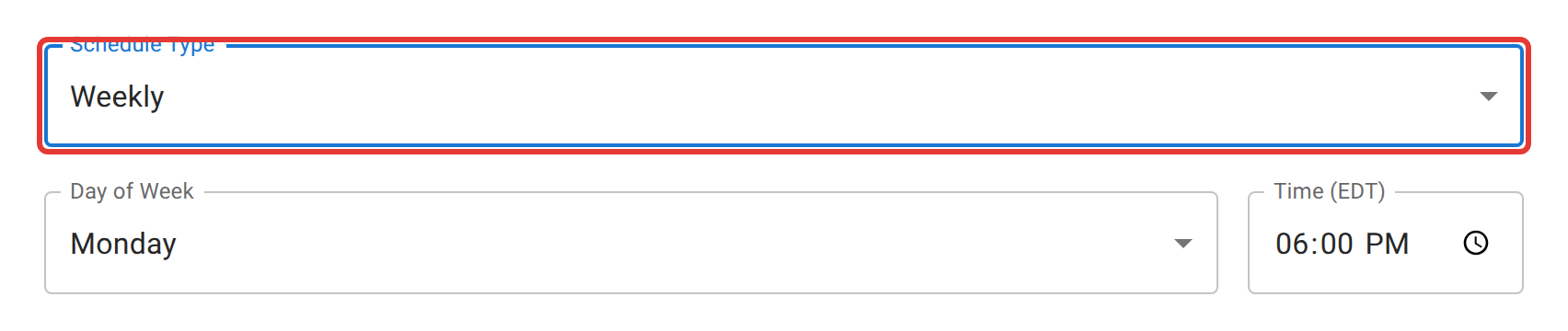
The other four types are there for the cases this one does not cover: Daily for an activation that runs every evening, Monthly for a club net on the second Thursday, One-Time Net for a single event you want scheduled in advance, and Ad-Hoc (Start Manually) for a plan you keep around and start by hand whenever you need it. A drill you run twice a year is a perfectly good Ad-Hoc schedule.
While you are on this tab, consider turning on Open the lobby automatically before the net. Set it to 30 minutes before and stations can gather, chat, and check in before the official start, instead of hammering reload waiting for somebody to click Start. It is off by default because it is not right for everyone, not because it is unusual.
3. Say who is allowed to run it
Click the Net Staff tab and add the operators who take turns at Net Control, one at a time, with Add NCS Operator and its Add button. They collect in the Additional NCS Operators list underneath.
This is the part that matters most, and the part most often skipped.
Anyone on this list can take Net Control of any net this schedule creates, just by checking themselves in and choosing Check in as NCS. They do not need you to hand them anything on the night, and they do not need to be the person the rotation says is on duty this week. That is deliberate: clubs routinely do not know who is available until half an hour before, and whoever turns up should be able to take the net.
Two things live on the schedule’s Staff button rather than on this form, so they wait until after you save. One is the Co-Manager flag, which you should leave off unless you actually want that person to be able to transfer the schedule, merge it into another, or delete its nets; plain staff can run nets and edit the schedule, which is what you want for most of the roster. The other is the rotation, on the Rotation Order tab: list the operators in the order they take turns, and ECTLogger will assign the scheduled one to each net about a day ahead and email them a reminder. Net staff and the NCS rotation covers both.
4. Pick the frequency
Click the Communication Plan tab and tick the box next to the frequency the net meets on, adding it in the row at the bottom if it is not listed. The save button stays greyed out until at least one is ticked, because every net this schedule creates takes its frequencies from here.
5. Create it
Click Create Schedule at the bottom. You land back on the Schedule page with your new schedule on it.
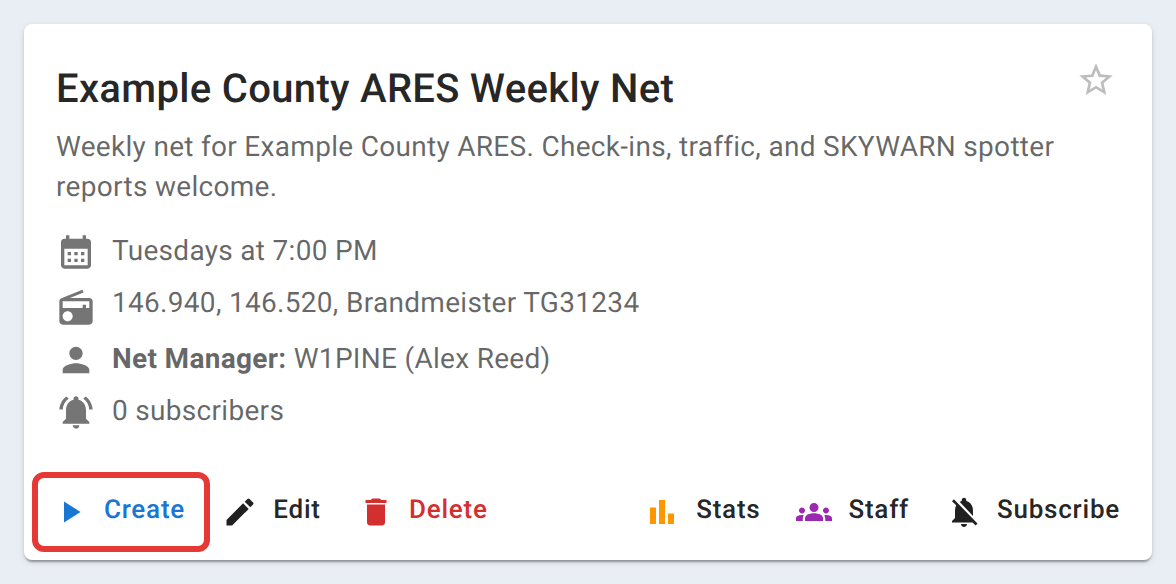
From here the schedule runs itself. It creates each week’s net on its own, opens the lobby if you asked it to, and reminds the rotation’s operator that they are up.
6. What to expect on the night
Two things surprise people the first time, and neither is a fault.
An auto-created net can have nobody assigned as Net Control, and that is intended. If the schedule has no rotation, ECTLogger deliberately does not pre-assign anyone, because at the point the net is created nobody knows who is free. Whoever shows up claims it by checking in as NCS. If your staff cannot take an unstaffed net, the problem is that they are not on the staff list, not that the net is unstaffed.
You do not have to wait for the recurrence. The Create button on the schedule card makes this week’s net immediately, with everything inherited. Use it the first time so you can look at what you built.
If your net already has years of history
You do not have to leave it behind. A finished net can be created and backfilled from a check-in list with its real start and end times, so everyone who took part gets attendance credit for nets that ran on paper long before any of this. See importing check-ins.
Where to go next
The net managers path is the full version of everything here:
- Recurring schedules — every recurrence option and exactly what a net inherits
- Net staff and the NCS rotation — staff, co-managers, rotation, and reminders
- Scripts, notes, and announcements — giving Net Control something to read from
- Cancelling, archiving, and restoring — calling off a week without the schedule quietly putting it back