Run your first net
By the end of this you will have run a net from start to finish: created it, started it as Net Control, logged stations, and closed it out. The log will be sitting in your email.
You do not need anyone else to take part. Make a net, work it for five minutes, close it. Nothing you do here is visible to your club unless you tell them about it, and a practice net that ran for five minutes with two stations in it is a perfectly ordinary thing to find in the archive.
You should have checked into a net at least once first, so the check-in list is familiar. That also matters for a second reason: to keep spammers from filling the dashboard, a brand-new account can’t create nets straight away. By default an account has to be a week old and have checked into at least one net, though your instance’s admins may have changed that. If Create Net at the end of step 1 tells you your account is too new, that is this rule; an admin can give you early access, or you can come back when it says. See a brand-new account may have to wait.
1. Create the net
From the dashboard, click the + button in the bottom right corner. You land on Create Net.
The form has seven tabs across the top, because it is the same form used to set up a recurring schedule, opened here for a single net. You need two of the tabs and two fields.
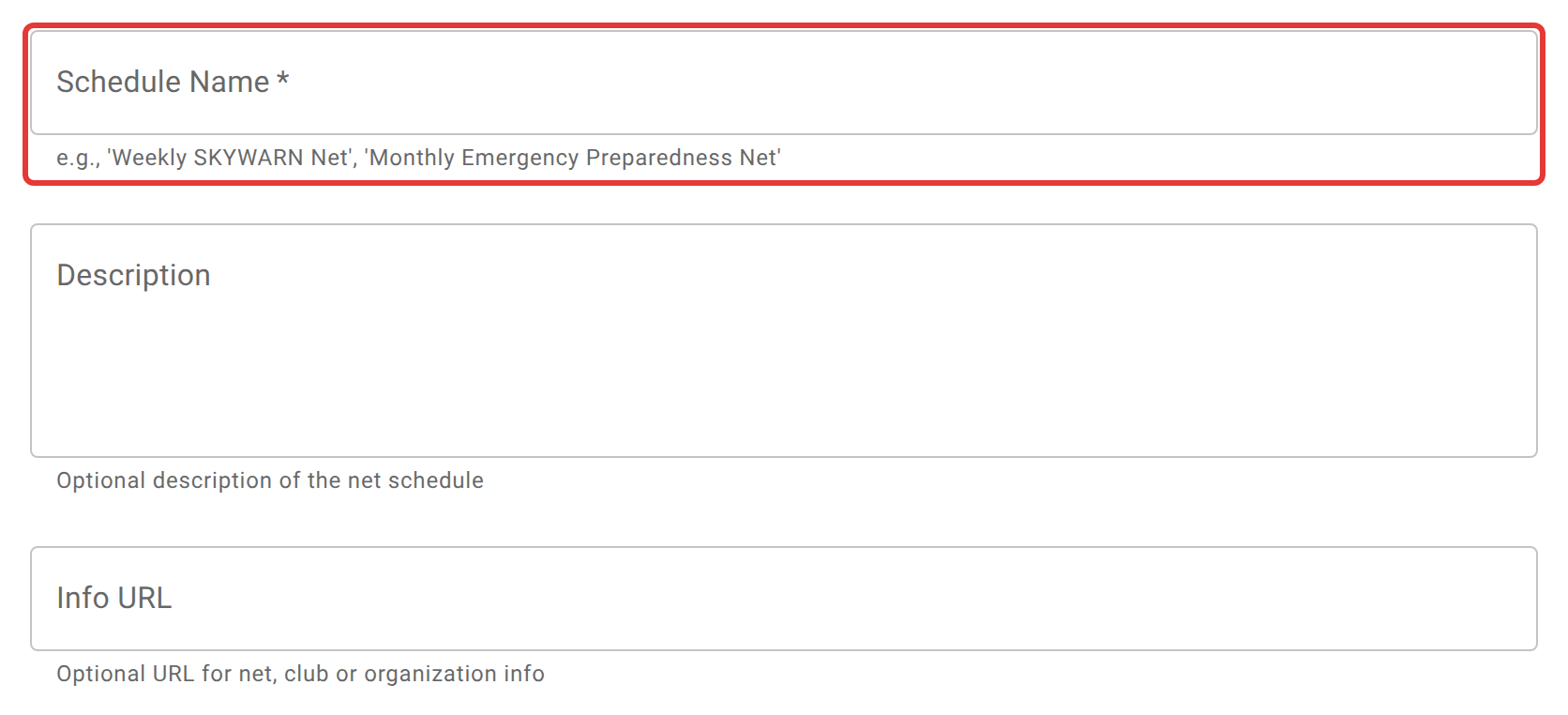
On Basic Info, put something in Schedule Name. It is the net’s name, whatever the label says. Call it what it is: “Thursday practice”, “KC1HILL test net”, whatever will make sense to you in a week’s time.
Then click the Communication Plan tab and tick the box next to the frequency you will actually be on. If it isn’t in the list, add it in the row at the bottom. Create Net stays greyed out until at least one is ticked: the net’s log is a record of a radio session, and a record of a radio session with no frequency on it is not worth much to whoever reads it later.
Leave everything else alone, including the Schedule tab, which is already set to a one-time net with no start time. Every other setting has a sensible default, and creating a net goes through them when you want to change one.
Click Create Net. You land on the net you just made, and because you made it, you are its Net Control already.
2. Start it
Your net exists, but it is a draft. Nobody can check in yet.
Click Start net on the toolbar.

A net with no scheduled start time goes straight to active, which is what you want here. (A net that is scheduled for later opens a lobby instead, so stations can gather before the official start. That is covered in lobby and auto-close settings.)
3. You are Net Control, and already checked in
Whoever clicks Start net is Net Control, and ECTLogger checks them in at the same moment, so you don’t have to. Look at the check-in list: your callsign is the first row, with a crown against it. A message in the chat says the net was started by you.
That matters more than it looks. The net’s log is built from the check-in list, so Net Control who never appeared in it would be missing from the record of a net they ran.
The toolbar has grown too. You can now add and edit anyone’s check-in, set the active frequency, moderate chat, and close the net, and Role: NCS on the toolbar shows which role you hold.
On a net that comes from a recurring schedule, it usually works differently: the net is often created with nobody in charge, and whoever on the schedule’s staff shows up takes Net Control by checking themselves in and choosing Check in as NCS. See roles and stepping away.
4. Log some stations
Stations call you on the air; you type them into the list. Click Bulk add on the toolbar.
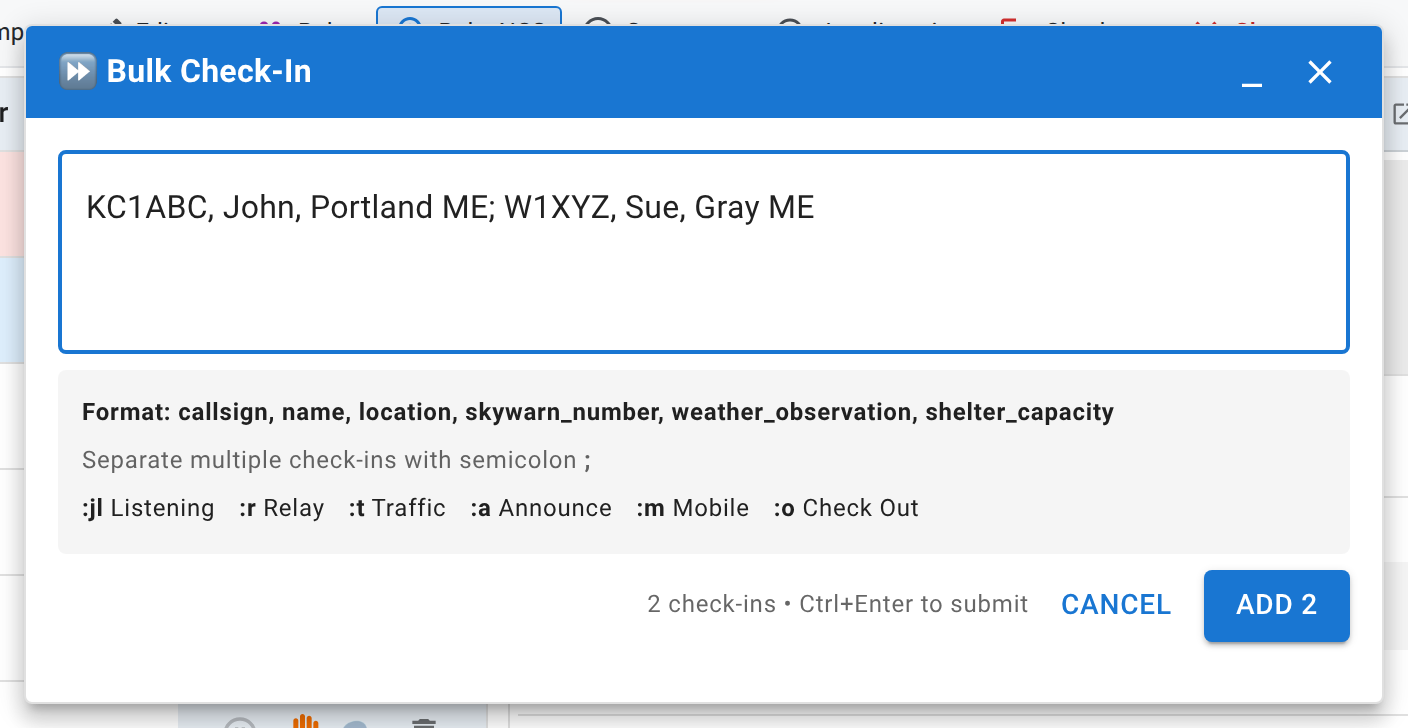
A small Bulk Check-In window opens with one big text box. Type a callsign, then a name, then a location, separated by commas, and separate one station from the next with a semicolon:
KC1HILL, Priya, Portland ME; N1ROVE, Chris, Gray ME
The window tells you the order it expects the fields in, on the Format line underneath the box, and that order is this net’s own: a net that asks for a spotter number or a weather observation lists those too. You only have to fill in as many as you have. Underneath that is a row of shortcuts for setting a station’s status inline, :jl for listening only, :m for mobile, and so on.
As you type, the window counts what it is about to create, and so does the button: Add 2. Press it, or press Ctrl+Enter.
Both stations appear in the check-in list immediately, in the order you typed them.
This is the part worth practising before you do it for real. During a busy net you will be taking callsigns faster than you can click, and typing a string of them into one box beats opening a dialog per station. The full syntax, including how to record a status or a spotter number inline, is in speed entry syntax.
To fix something you got wrong, click the row. The cell becomes editable in place, so correcting a misheard callsign does not mean losing your position in the list.
5. Close it out
When the net is over, click Close net, then Close Net again in the dialog that asks whether you’re sure.
Three things happen. The net moves to closed and stops accepting check-ins. A system message goes into the chat saying the net is closed, with a reminder to archive it once you’re done with it, which takes it off everyone’s dashboard. And ECTLogger builds the log and emails it out.
You get a copy because you were Net Control on it. So does the net’s manager, and anyone subscribed to the schedule it came from, unless they have turned those emails off in their own profile.
Go and look at your inbox. The log lists every station, when they checked in, on what frequency, and with what status, which is exactly the record an emergency coordinator or a club secretary asks for after an activation.
What you just avoided
Nothing you did here needed a spreadsheet afterwards. That is the entire point of the tool: the log is a by-product of running the net, not a job you do when the net is finished and you would rather be in bed.
Where to go next
- The net control desk is the proper tour of every control you just skipped past.
- Logging check-ins covers editing, correcting, and logging stations that have no account.
- Closing the net covers what the log contains, who receives it, and what to do if you close one by mistake.
- If your club runs the same net every week, stop creating it by hand: set up a recurring schedule is the next tutorial.