Custom check-in fields
Every field a check-in form can ask for (Name, Location, Spotter #, Weather, Power, Notes, or anything you add yourself) is defined once, instance-wide, on the Check-in Fields tab. A net creator then picks which of these fields their own net actually uses, and whether each one is required. This tab is where that whole menu comes from.
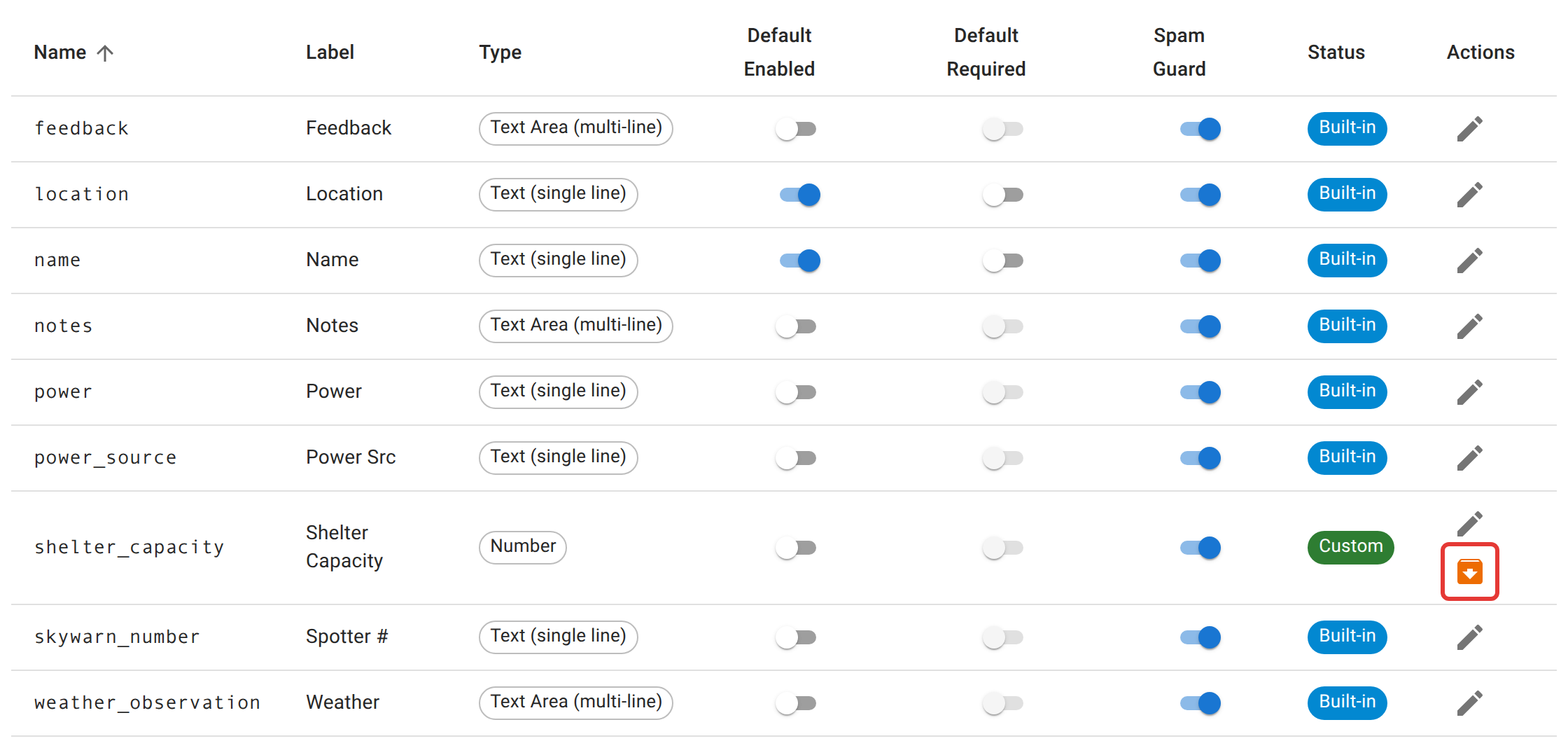
What ships built in
Eight fields come with the instance and can never be archived: Name and Location (on by default, since practically every net wants these), and Spotter #, Weather, Power Src, Power, Feedback, and Notes (off by default, since not every net needs them). You can still edit a built-in field’s label, placeholder text, and defaults; you just can’t remove it from the list entirely.
Adding a field
- Click the + button (bottom right).
- Give it an internal name, using lowercase letters, numbers, and underscores only (anything else you type, including spaces and punctuation, is replaced with an underscore as you type). This can’t be changed later, since it’s how the value is stored under the hood, so pick something you’d be comfortable seeing in an export a year from now.
- Give it a display label, which is what operators actually see on the check-in form.
- Pick a field type: a single line of text, a multi-line text area, a number, a dropdown (enter one option per line), or a checkbox.
- Optionally add placeholder text, and decide whether the field should be enabled by default and required by default for a brand-new net. Both are just starting points; the person creating a specific net can still turn either on or off for that net.
- Set a sort order if you want it to appear in a particular spot relative to the others. Built-in fields use 10 through 70; leave custom fields at 100 or higher so they sort after the built-ins unless you have a reason to interleave them.
Spam Guard
Every field also carries a Spam Guard switch, on by default. While it’s on, a check-in that submits a value looking like a URL or an email address for that field is rejected outright — not just flagged — whether it came from the check-in form or any other client. This is meant for fields that were never supposed to hold a link: Location, Notes, and the like. Turn it off only for a field you deliberately want to hold a link or address; leaving it on everywhere else is what keeps a station’s promotional link or email address out of the check-in list and, from there, out of the official ICS-309 log your group hands to a served agency. See Reports, ICS-309, and exports for the matching net-level setting that keeps a muted station’s chat out of that same log.
Archiving instead of deleting
There’s no delete button here on purpose. A field that’s no longer needed gets archived: it disappears from the list a net creator picks from, but every past check-in that recorded a value in it keeps that value, readable, forever. Restoring an archived field (the same icon, now labeled Restore) brings it back exactly as it was. Built-in fields can’t be archived at all. Name and Location, especially, are structural to how a check-in works.
Not here
Turning a specific field on or off, and deciding whether it’s required, for one particular net happens when that net or schedule is created, not here. See net managers. The complete list of fields and what each one means to an operator filling out a check-in is in Check-in fields.