Branding and themes
The Branding tab controls how the instance looks for everyone who hasn’t already made their own choice, plus the logo, which applies to every visitor regardless.
Default theme
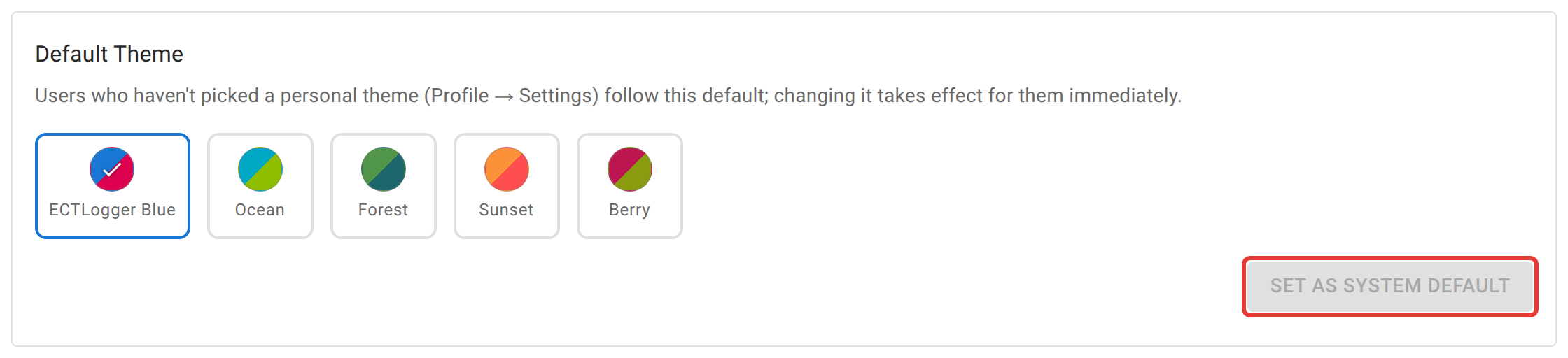
Pick a swatch and click Set as System Default. The button stays greyed out while the swatch already in force is the one selected, which is why it looks disabled the first time you open the tab. This is genuinely just a default: anyone who has picked a personal color theme from their own Profile → Settings keeps that choice, and this only affects people who never have.
Default appearance
A separate light/dark toggle controls which mode a visitor gets on their very first visit, before they’ve toggled light or dark for themselves. Once someone toggles it once, their own browser remembers that choice from then on — this setting only ever reaches brand-new visitors.
Custom theme
If none of the curated swatches fit, define your own: a name, and a light and a dark color pair (primary, secondary, background, and paper) for each. Once saved, it shows up as an extra swatch — labeled with the name you gave it — in this picker and in every user’s own Profile → Settings, alongside the curated set. Clear removes it and reverts everyone using it to whatever the curated default is.
Logo

Upload a PNG, JPEG, WebP, or SVG up to 2 MB to replace the built-in ECTLogger mark. It appears in the navigation bar, on the sign-in page, and on a net’s printed report. Reset to Default removes it and reverts to the built-in mark everywhere it appears.
Not here
There’s currently no separate setting for an instance display name shown alongside the logo — what you see in the navbar today is the ECTLogger mark itself, not a configurable site title. If you need one, say so; it isn’t wired up yet.